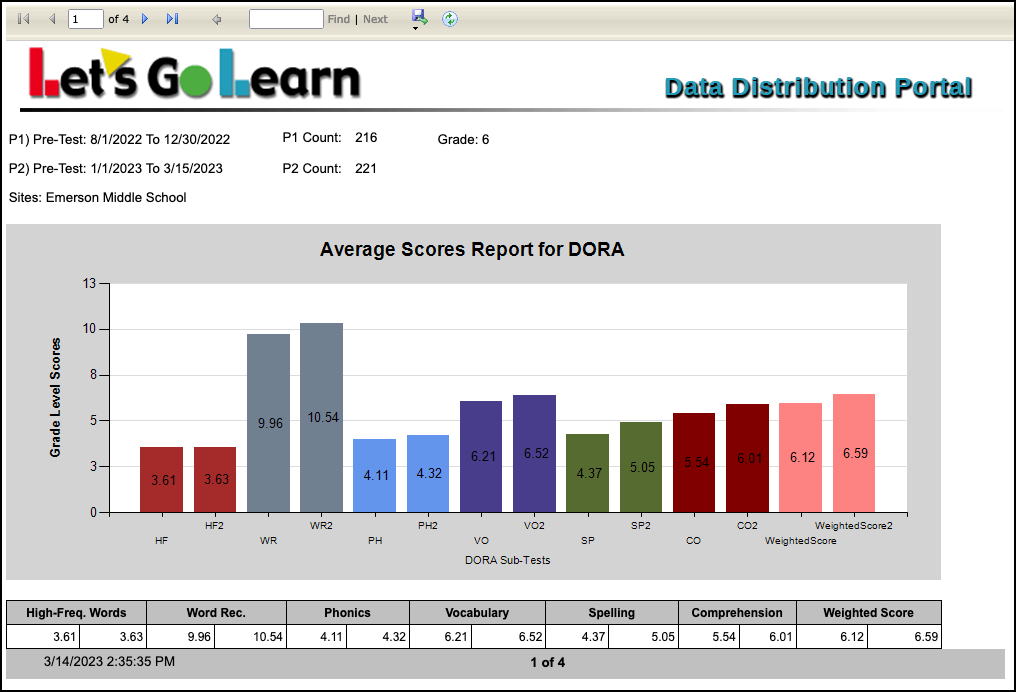
The Average Scores Report provides the average grade level scores with all strands comparing two time periods.
FROM ADMIN/PRINCIPAL ACCOUNT
Log into your Admin account and click on the Reporting tab; then select DataPortal.

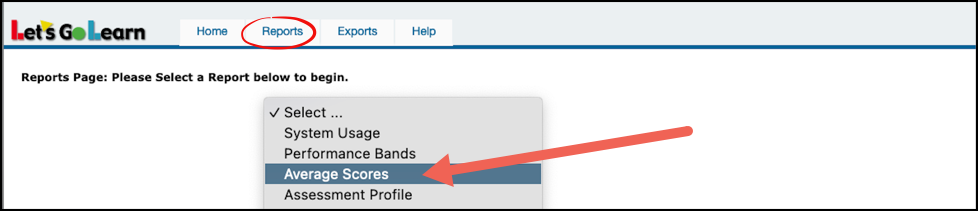
In the Data Portal, click on the Reports tab and select Average Scores.
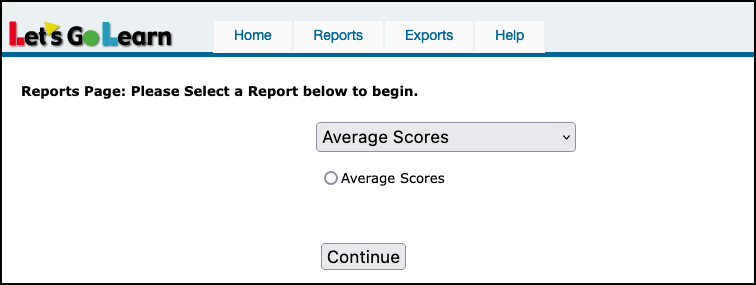
Mark the cirlcle for Average Scores and click Continue.
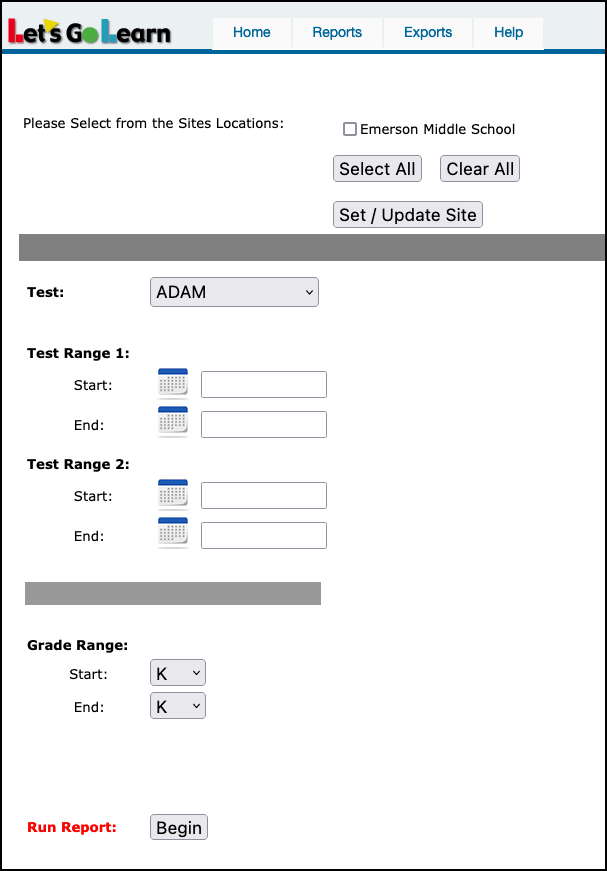
- Select the site(s) and then click on Set/Update Site.
- Select the test.
- Input test range 1 & 2.
- Select grade range for report.
- Click Begin to run report.
Example report below.
FROM TEACHER ACCOUNT:
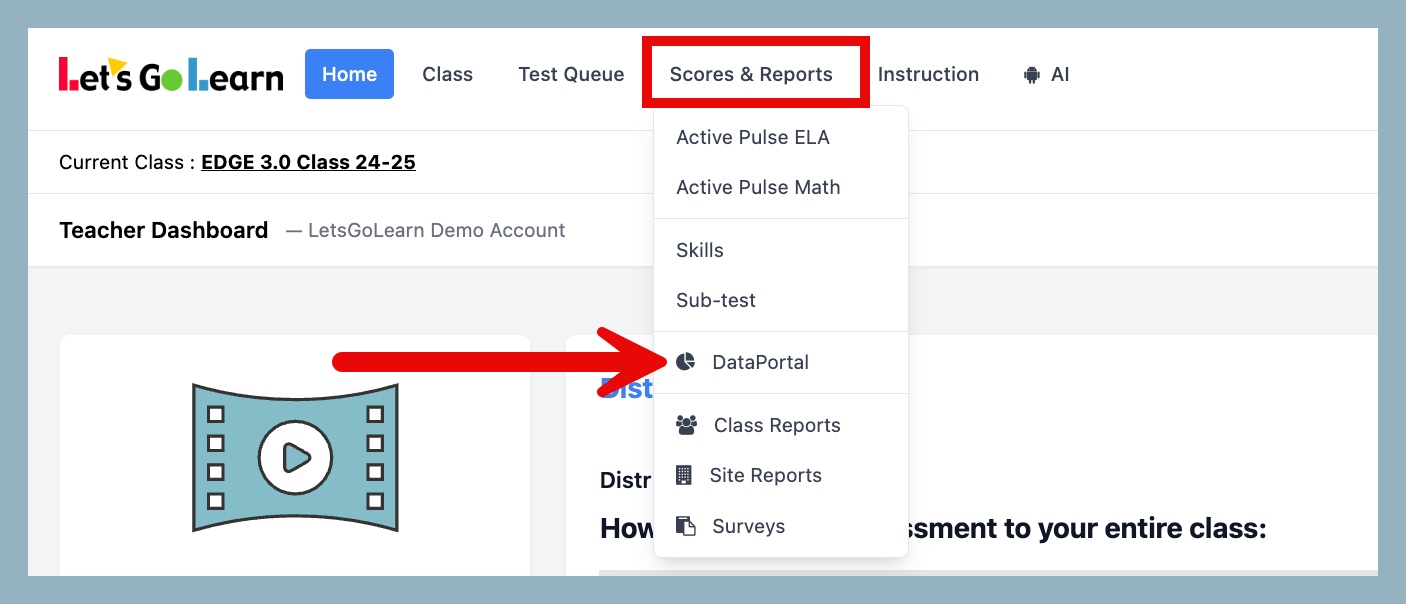
STEP 1 - Log into the Data Portal from the teacher account by clicking on the Reporting tab and selecting DataPortal. You can also access the Data Portal from the Scores & Reports tab.
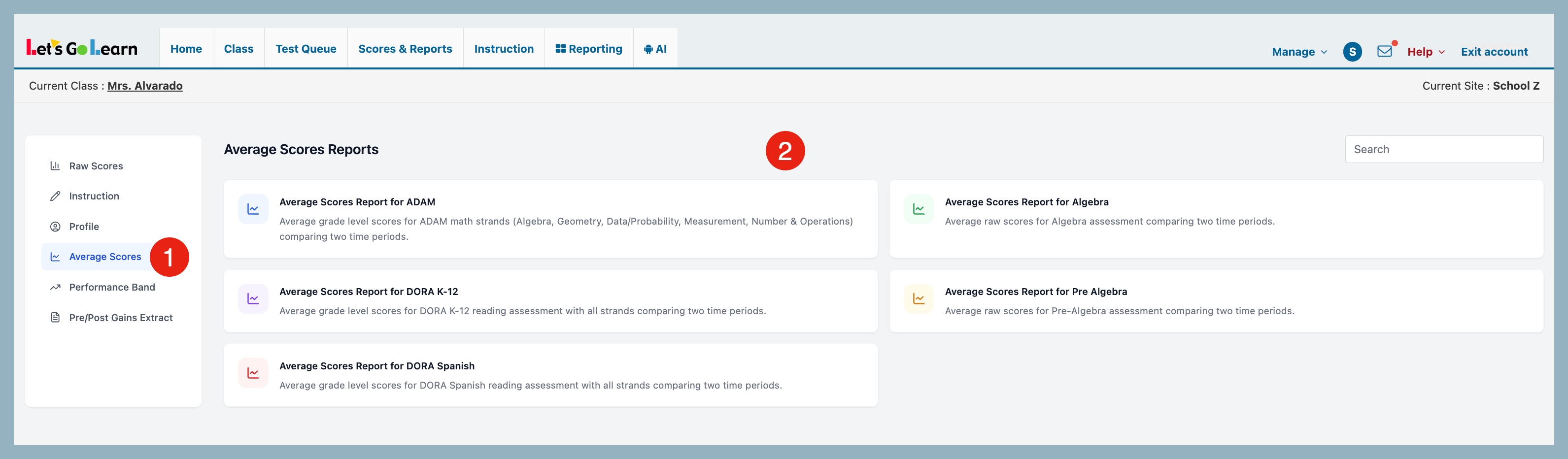
STEP 2 - On the Data Portal page, click on Average Scores and then select the report for the specific assessment you wish to view.
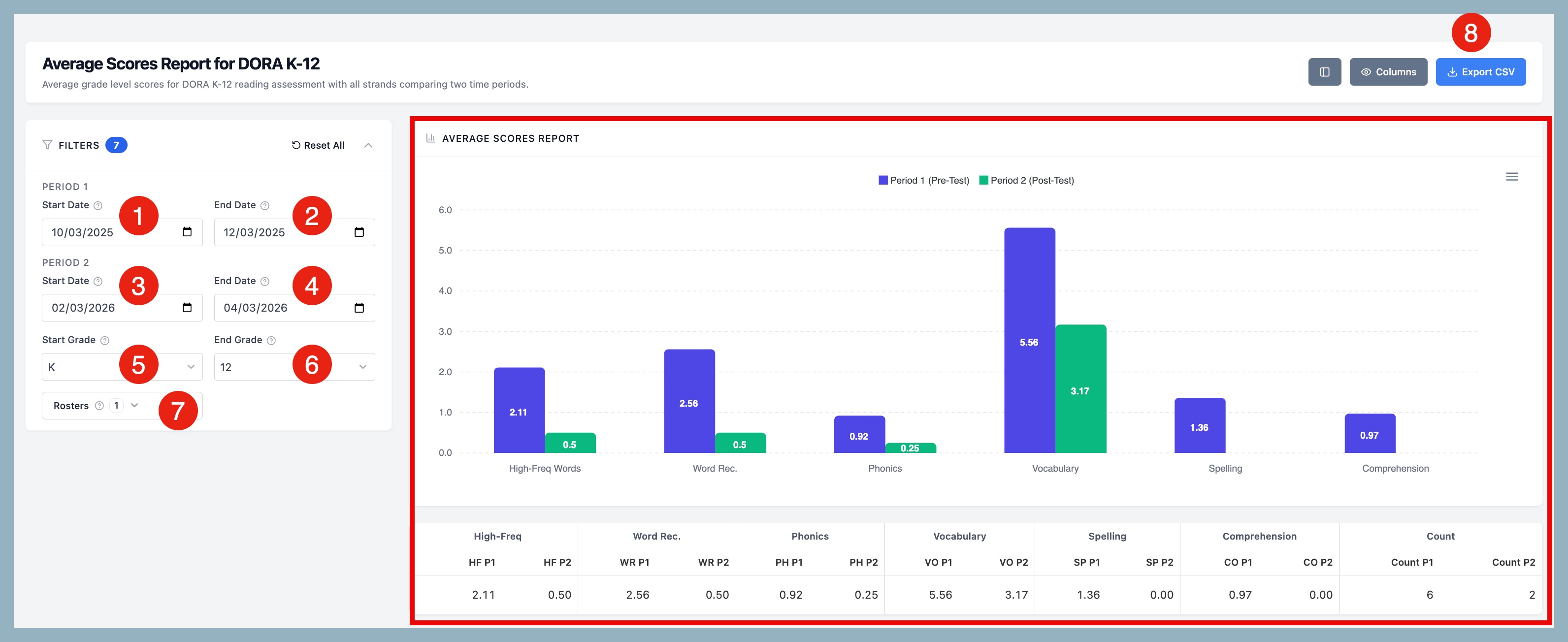
STEP 3 - On the Average Scores Report page, select your report criteria.
- Period 1 Start Date - select start date range
- Period 1 End Date - select end date range
- Period 2 Start Date - select start date range
- Period 2 End Date - select end date range
- Start Grade - select start grade range
- End Grade - select end grade range
- Rosters - select roster
- Export CSV - export your report to a CSV file
Once filters are applied, your report will appear on the right of the page.



 Multiple values found.


 Profile
 Sign up now
 Manage
  Sign out