From the Data Portal of the Admin (Principal) or Teacher account, you can export the summary scores for a selected assessment using the Raw Scores Export. This report is exported in an Excel format.
See below, under Attachments, for PDF
FROM ADMIN ACCOUNT:
STEP 1 - Log into the Data Portal from the Admin (Principal) account by clicking on Reporting and selecting DataPortal.

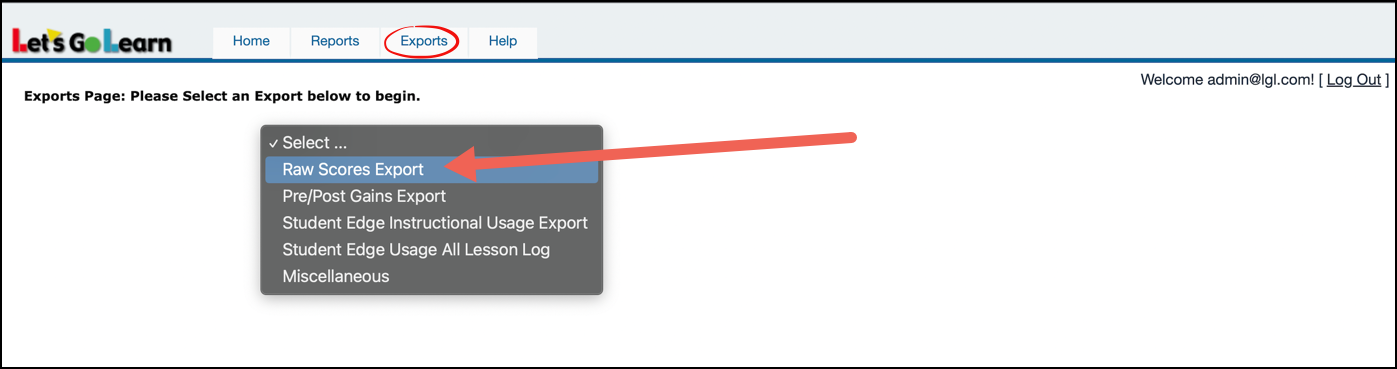
STEP 2 - Click on the Exports tab and select Raw Scores Export.
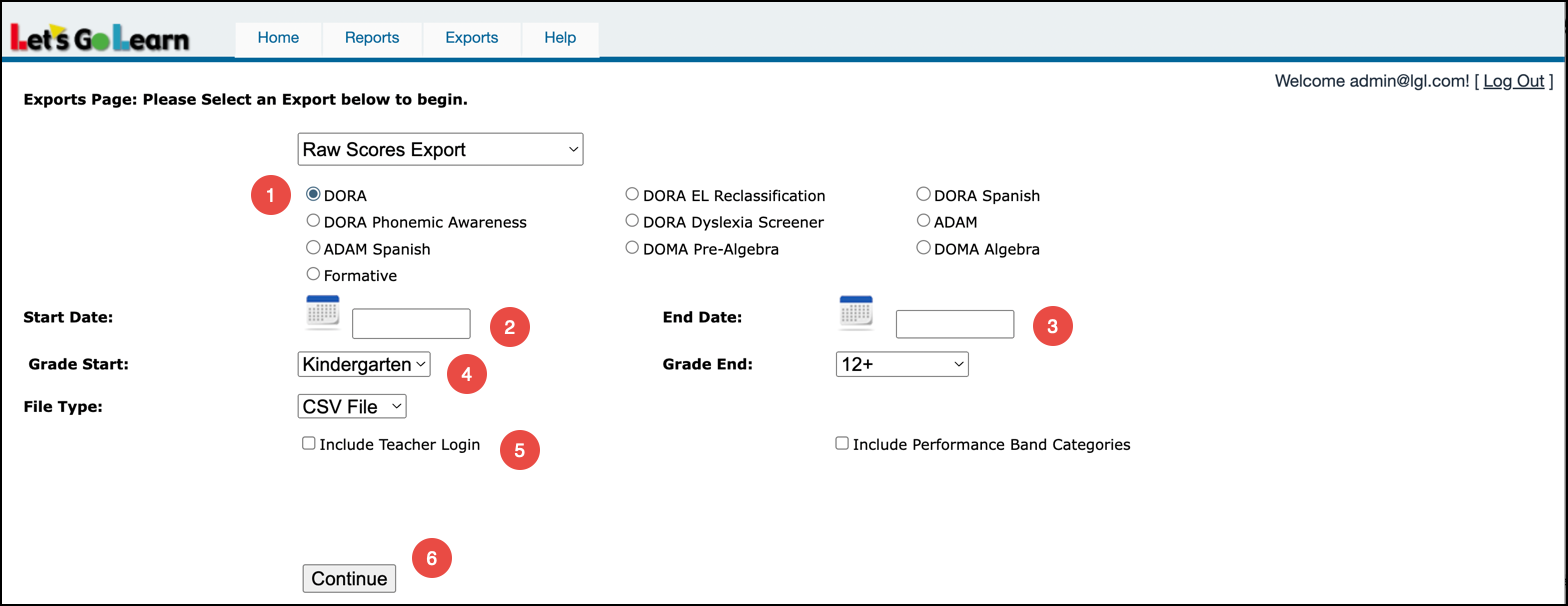
STEP 3 - Fill in the requested information.
- Select assessment.
- Select start date range.
- Select end date range.
- Adjust the grade range, if desired.
- Select additional options, if desired.
- Click on Continue.
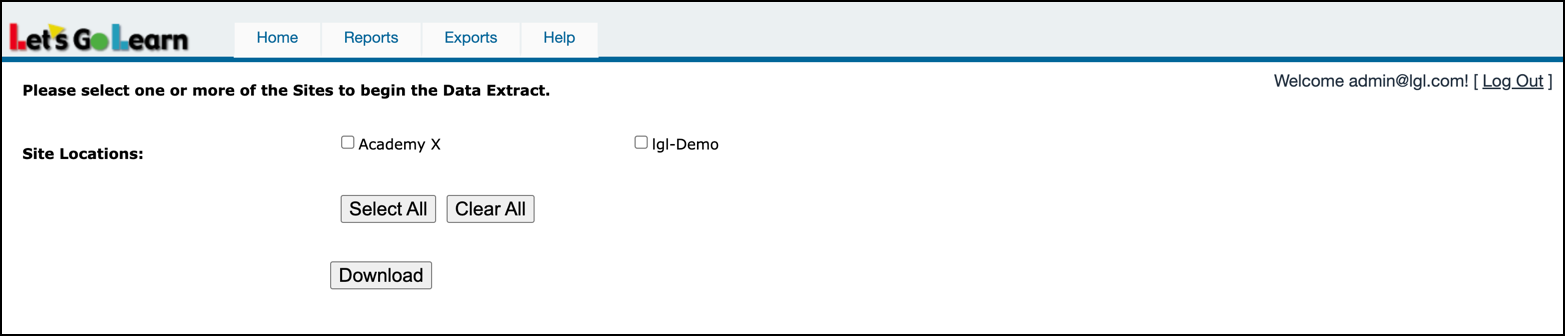
STEP 4 - Select sites to include in report.
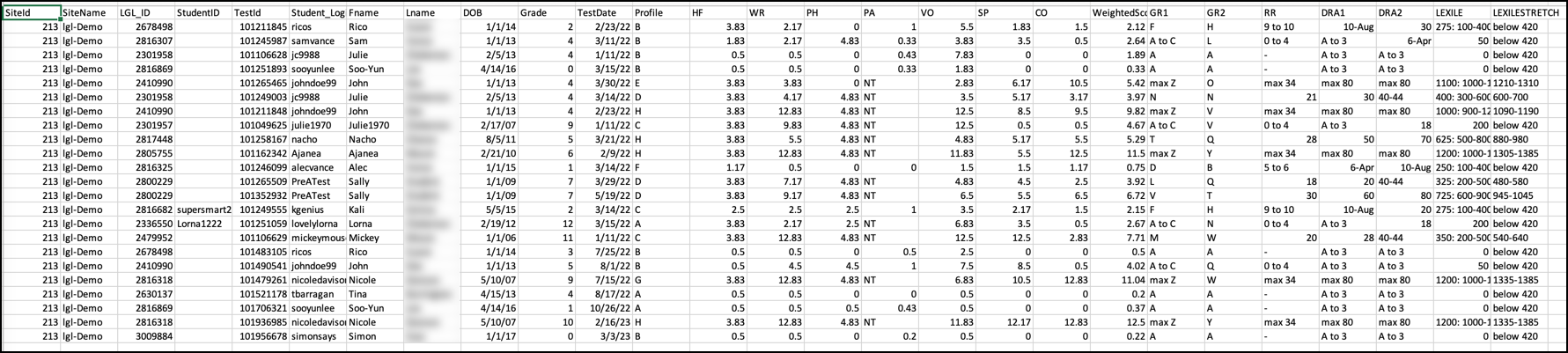
Example report below.
FROM TEACHER ACCOUNT:
STEP 1 - Log into the Data Portal from the teacher account by clicking on the Reporting tab and selecting DataPortal. You can also access the Data Portal from the Scores & Reports tab.
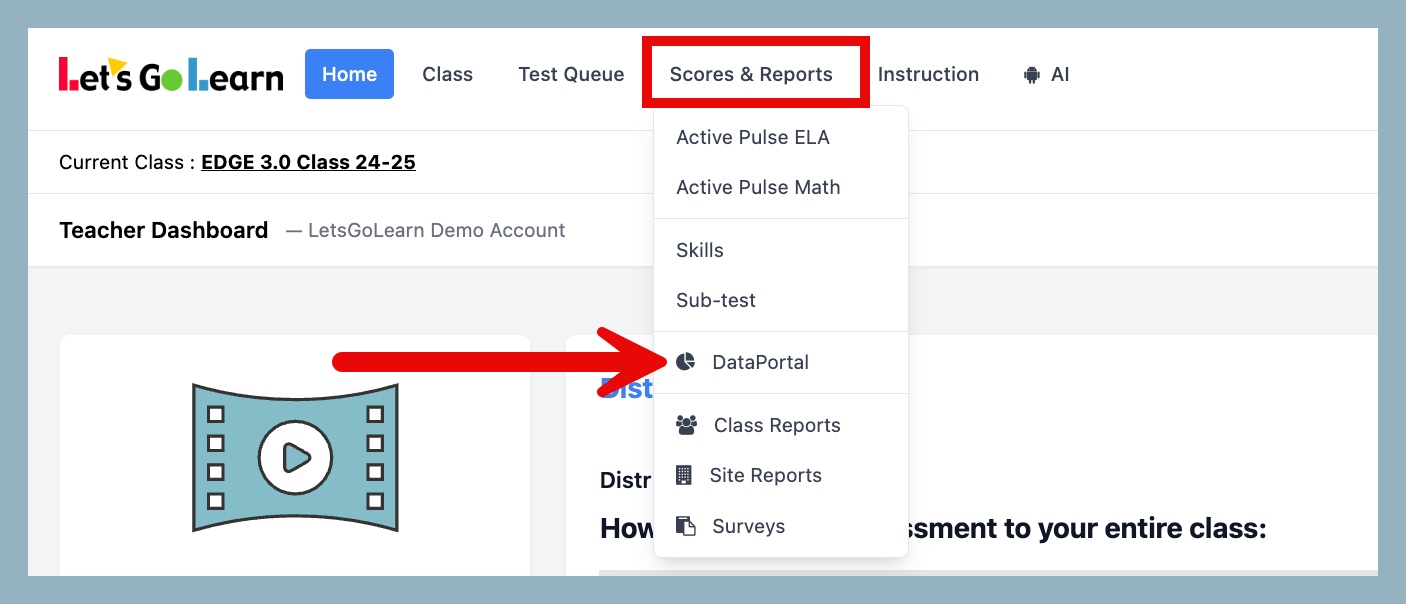
STEP 2 - On the Data Portal page, select Raw Scores and then click on Raw Scores Report.
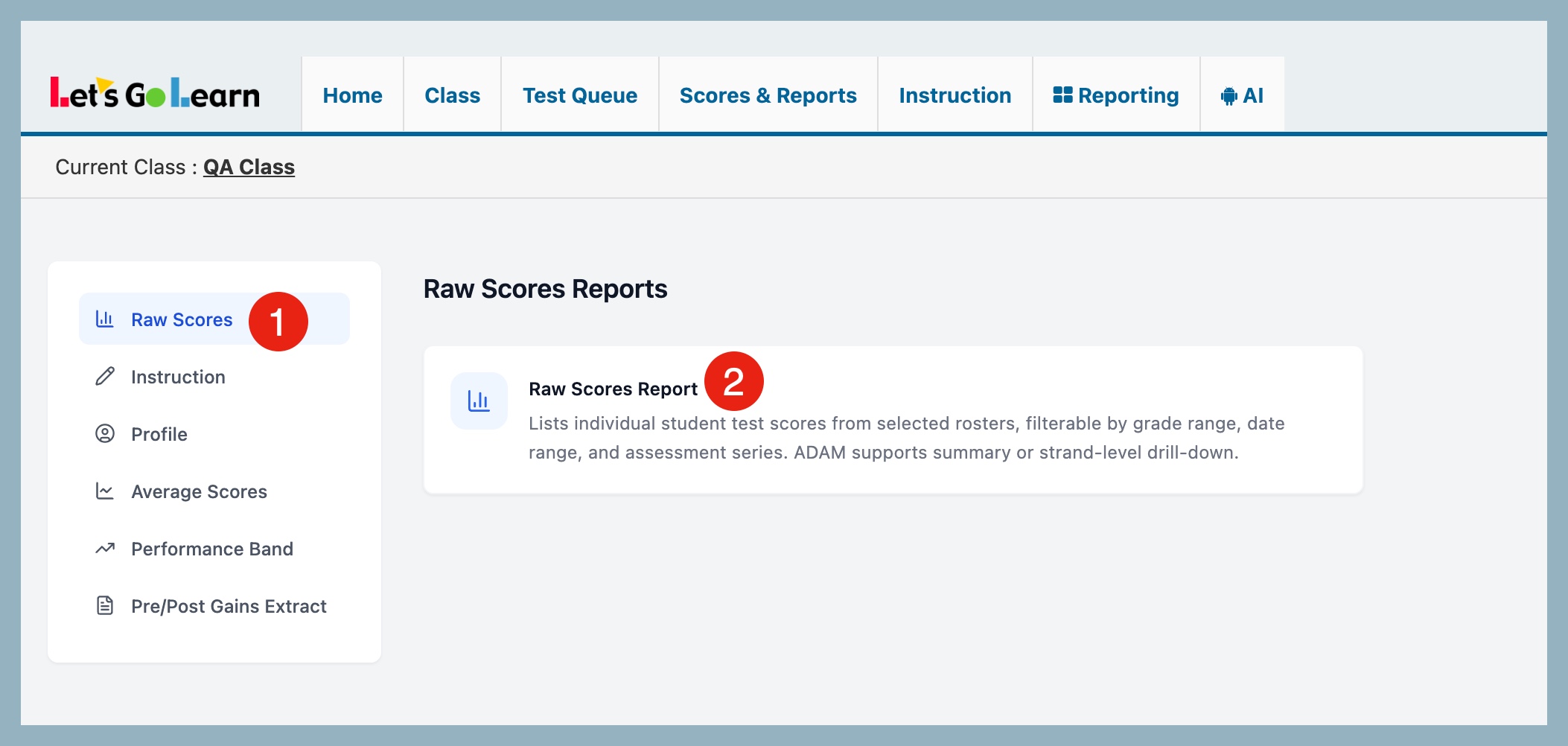
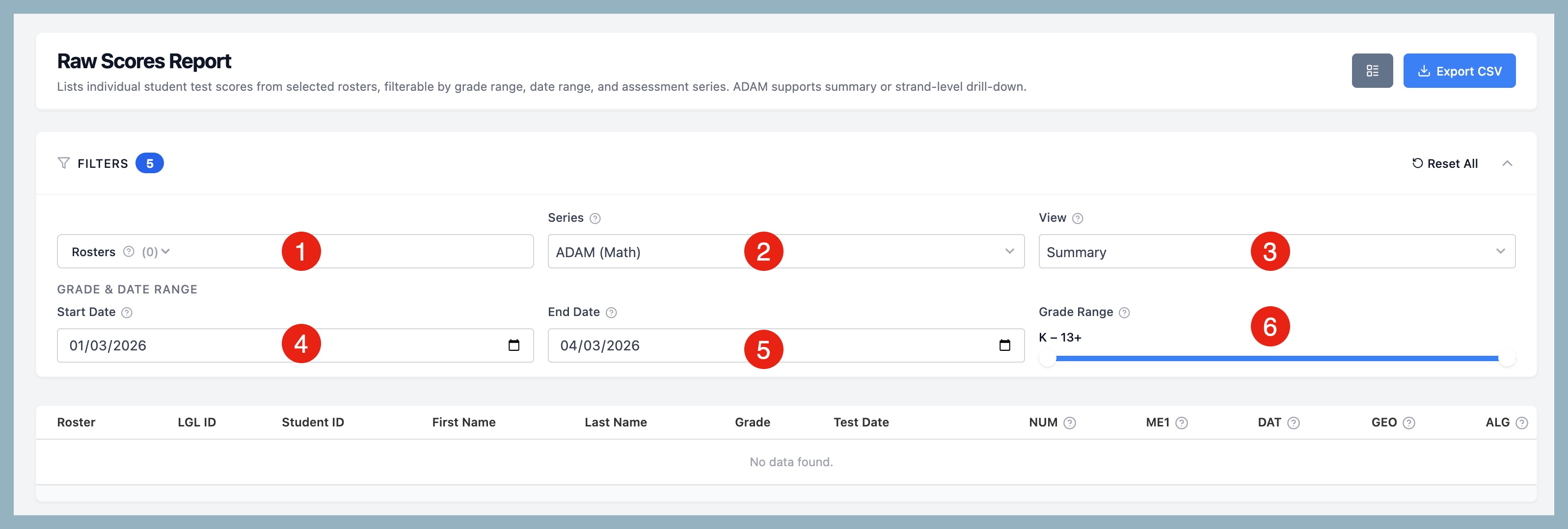
STEP 3 - On the Raw Scores Report page, select your report criteria.
- Rosters - select roster
- Series - select the assessment series
- View - For ADAM only, choose Summary or drill down into specific strand
- Start Date - select start date range
- End Date - select end date range
- Grade Range - default is all grades but you have the option use the toggle to select a specific grade range
STEP 4 - Once filters are applied, your report will appear below. Click 'Export CSV' to download your results.
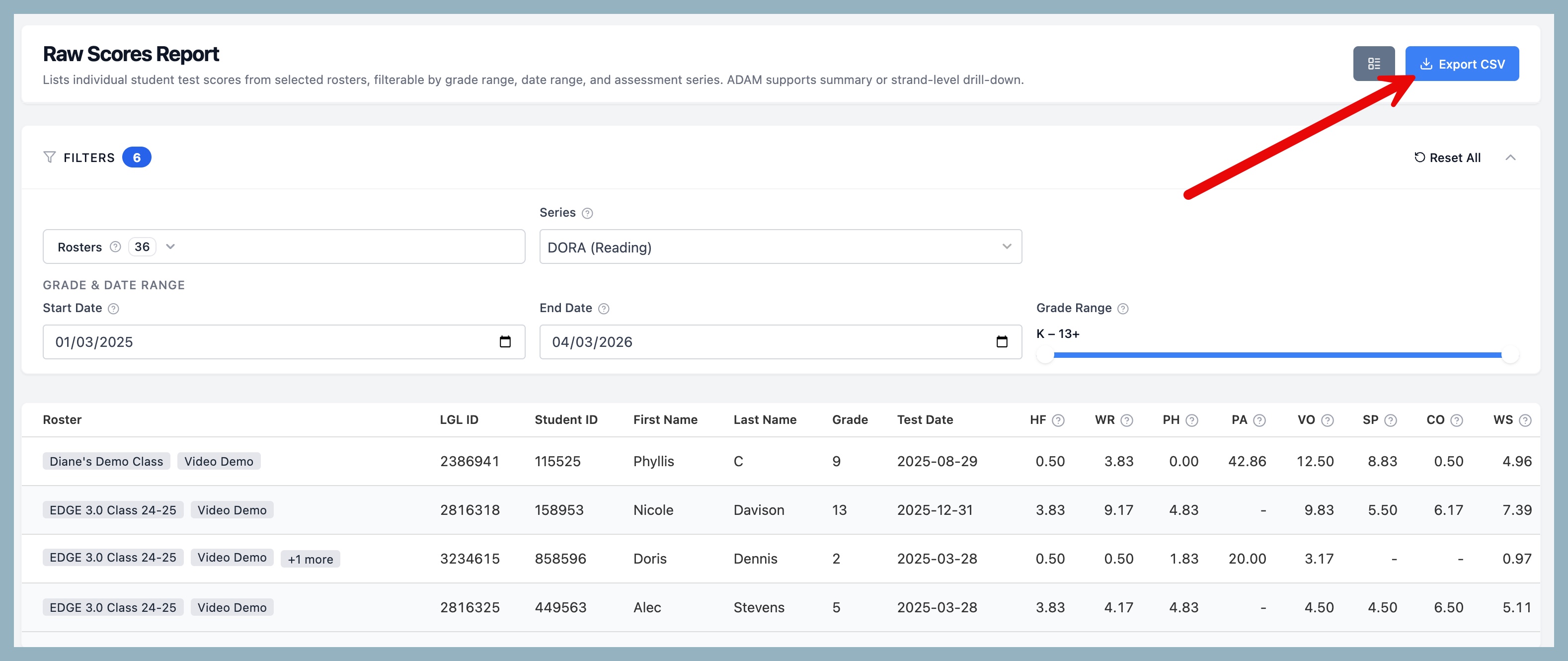
Example report below.

Helpful Links:
What do the column headers stand for in the DORA Raw Scores Report?
What do the column headers stand for in the DORA Phonemic Awareness Raw Scores Report?
What do the column headers stand for in the ADAM Raw Scores Report?
What do the column headers stand for in the DORA Spanish Raw Scores Report?
What do the column headers stand for in the DOMA Pre-Algebra Raw Scores Report?
What do the column headers stand for in the DOMA Algebra Raw Scores Report?



 Multiple values found.


 Profile
 Sign up now
 Manage
  Sign out