ASSIGNING ASSESSMENTS TO STUDENTS
You can assign assessments to individual students or your entire class. Follow the instructions below to get started.
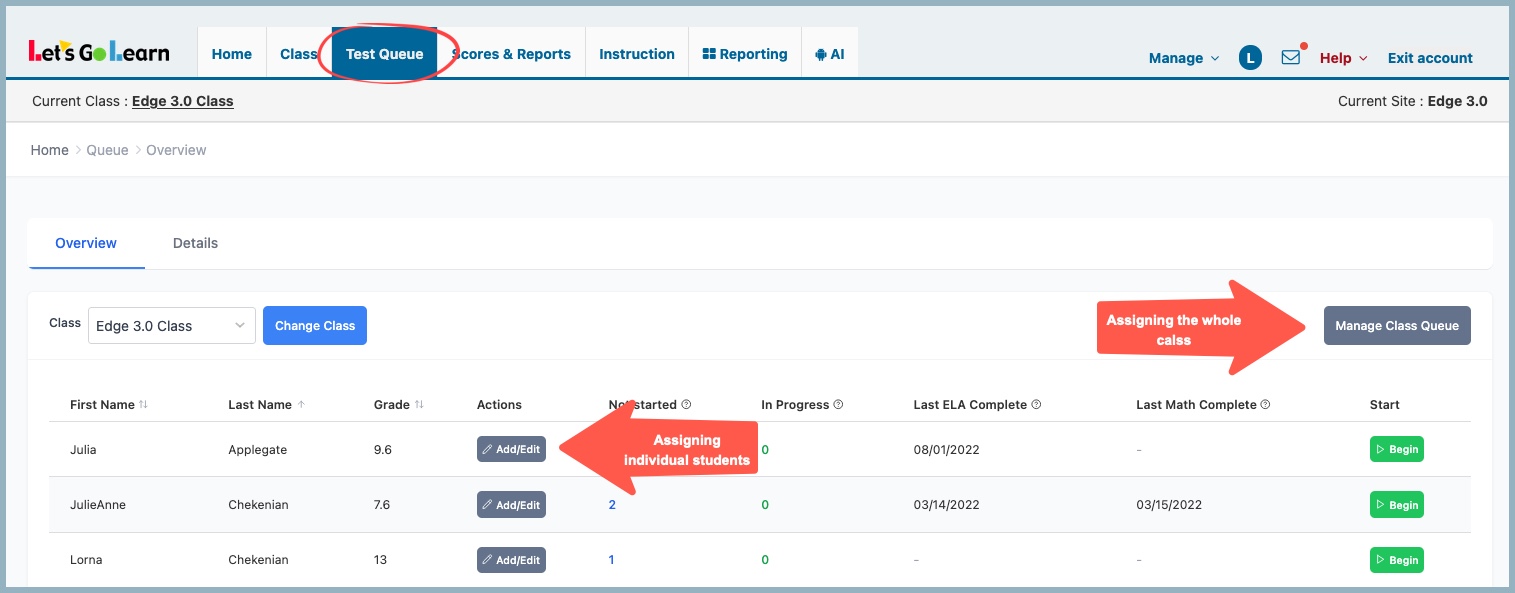
Click on the Test Queue tab of your teacher account.
ASSIGNING ASSESSMENTS TO THE WHOLE CLASS
Click on Manage Class Queue
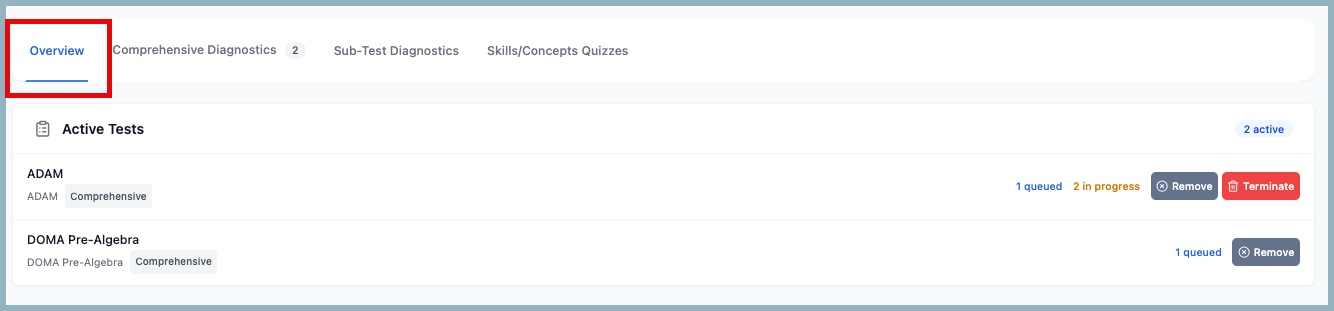
The Overview page will display a list of all assessments that have been assigned or are currently in progress for the entire class.
Assessments that are queued but not yet started will display a Remove button. Assessments that have already been started will display a Terminate button.
If you want to remove the queued assessment, simply click Remove.
To terminate an assessment that is already in progress, click Terminate. A warning message will appear notifying you that the test results will no longer be available after you select Yes, Terminate.
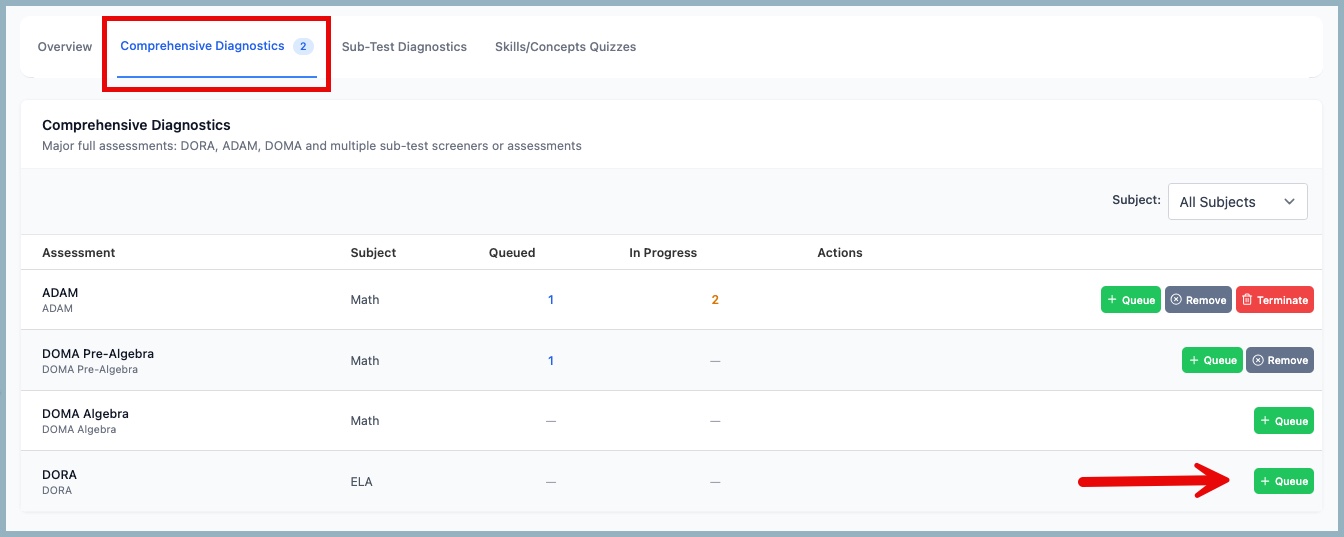
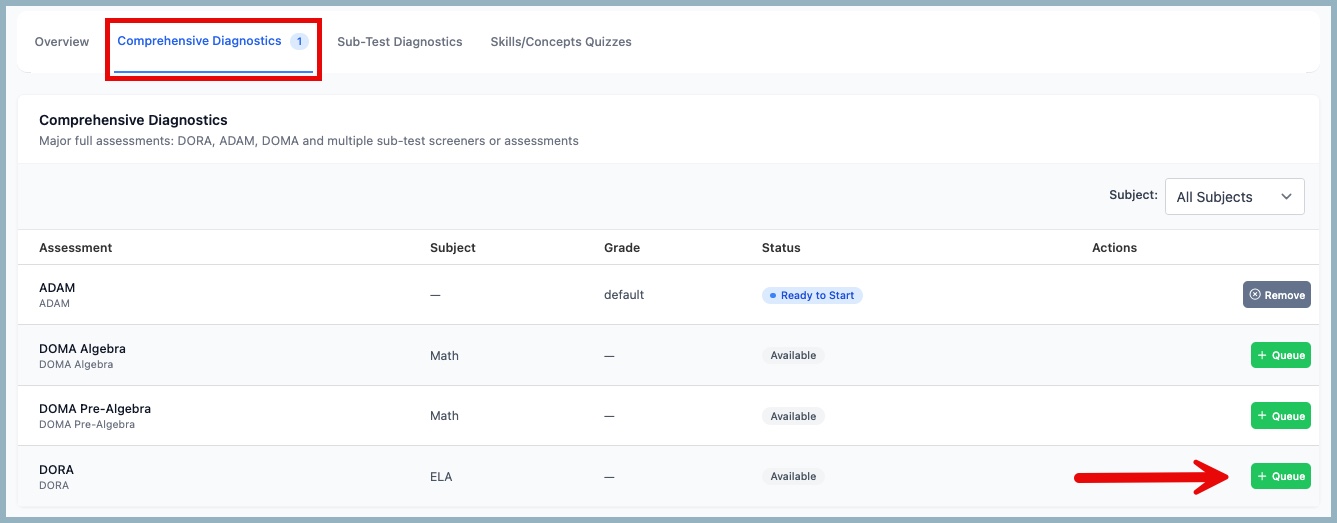
To queue up a Comprehensive Diagnostics assessment, click on Comprehensive Diagnostics. Locate the row for the assessment you wish to assign and click on the green Queue button.
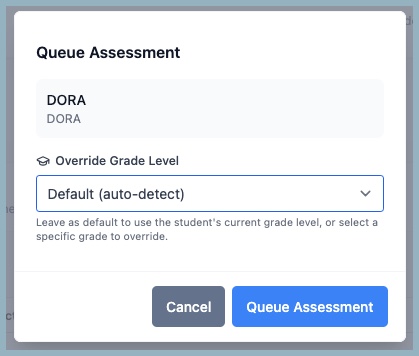
A pop-up window will appear, giving you the option to override the grade level. This option is designed for students with IEPs whose instructional grade level is significantly lower than their enrolled grade level. For most students, you should leave the grade level set to Default, since the assessments automatically adapt to student responses.
To queue the class, click Queue Assessment.
Once queued, you will be able to view the number of students queued and in progress, and students can log in using their unique student credentials, or the teacher can log them in from the teacher account.
ASSIGNING ASSESSMENTS TO AN INDIVIDUAL STUDENT - Video Link
Click on the "Add/Edit" button next to the individual student to be assessed.
The Overview page will display a list of all assessments that have been assigned or are currently in progress to this student.
Assessments that are queued but not yet started will display a Remove button. Assessments that have already been started will display a Terminate button.
If you want to remove the queued assessment, simply click Remove.
To terminate an assessment that is already in progress, click Terminate. A warning message will appear notifying you that the test results will no longer be available after you select Yes, Terminate.
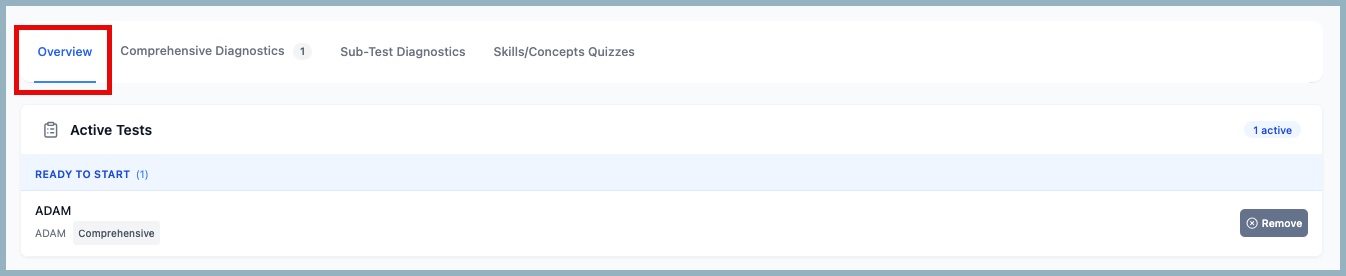
To Queue up a Comprehensive Diagnostics assessment, click on Comprehensive Diagnostics. Locate the row for the assessment you wish to assign and click on the green Queue button.
A pop-up window will appear, giving you the option to override the grade level. This option is designed for students with IEPs whose instructional grade level is significantly lower than their enrolled grade level. For most students, you should leave the grade level set to Default, since the assessments automatically adapt to student responses.
To queue the student, click Queue Assessment.
Once queued, you will be able to view all the queued and in progress assessments assigned for that student, and the student can log in using their unique student credentials, or the teacher can log them in from the teacher account.
How do I assign a Skills/Concepts Formative Assessment - Click Here
How do I assign a Sub-test Formative Assessment? Click Here
Helpful Information:
How does a student being an assessment?
Important Note: Assessments must be started/finished within 60 days of being queued or they will be automatically terminated. Assessments lose their validity if not completed within a timely manner.
For instructions in a PDF format with screen shots, click on attached file below: Assigning Assessments to Students



 Multiple values found.


 Profile
 Sign up now
 Manage
  Sign out