ASSIGNING SKILLS/CONCEPTS QUIZZES TO STUDENTS
You can assign assessments to individual students or your entire class. Follow the instructions below to get started.
Click on the Test Queue tab of your teacher account.
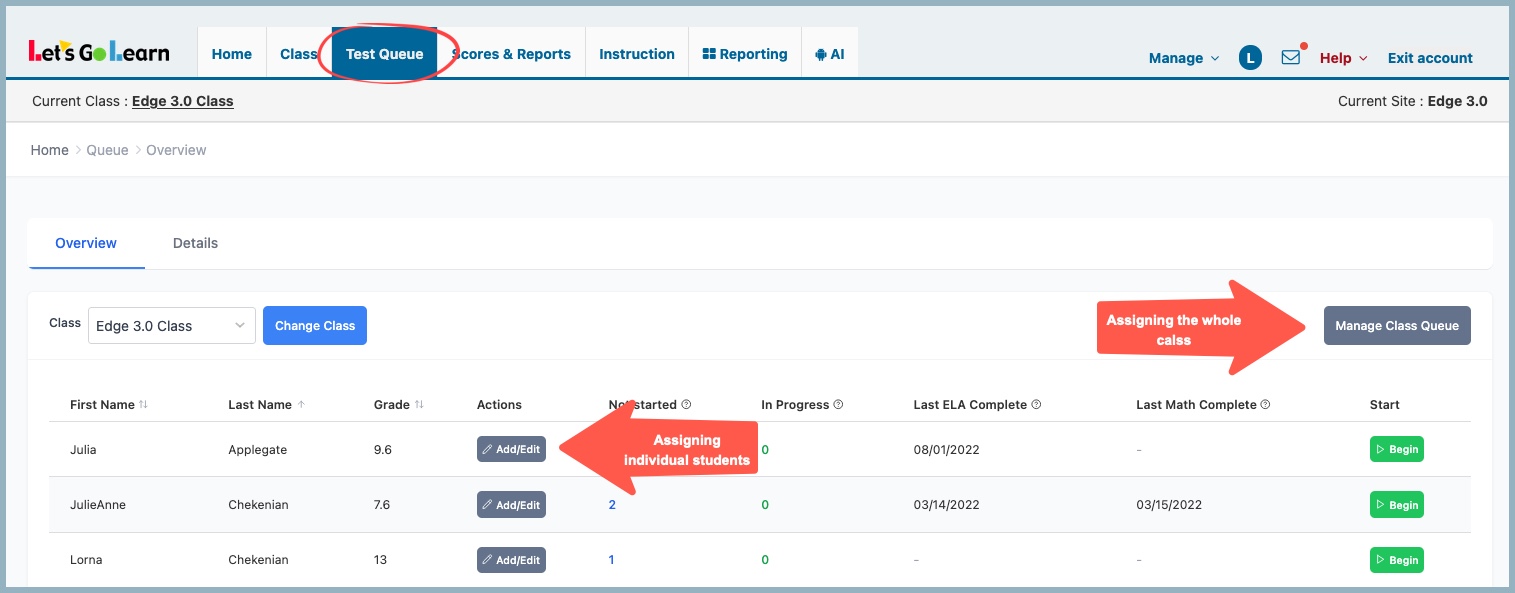
ASSIGNING SKILLS/CONCEPTS QUIZ TO THE WHOLE CLASS
For Video - Click Here
Click on Manage Class Queue
The Overview page will display a list of all assessments that have been assigned or are currently in progress for the entire class.
Assessments that are queued but not yet started will display a Remove button. Assessments that have already been started will display a Terminate button.
If you want to remove the queued assessment, simply click Remove.
To terminate an assessment that is already in progress, click Terminate. A warning message will appear notifying you that the test results will no longer be available after you select Yes, Terminate.
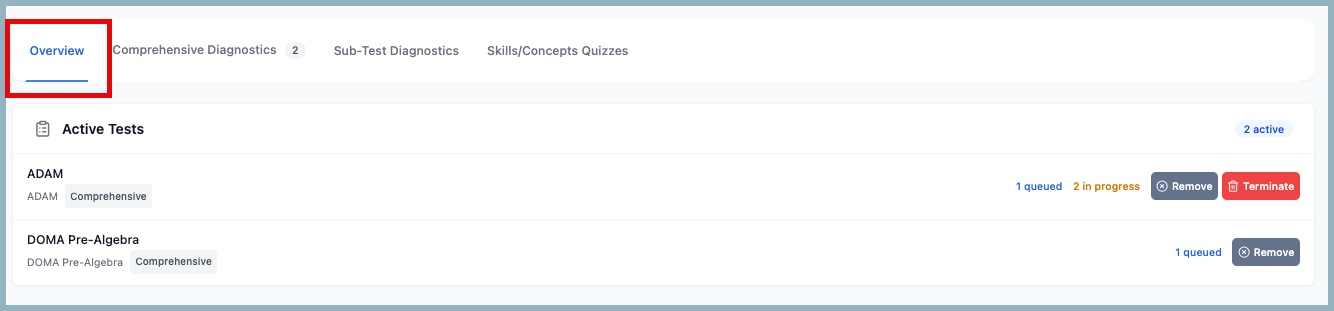
To queue up a Skills or Concepts Quiz, click on Skills/Concepts Quizzes.

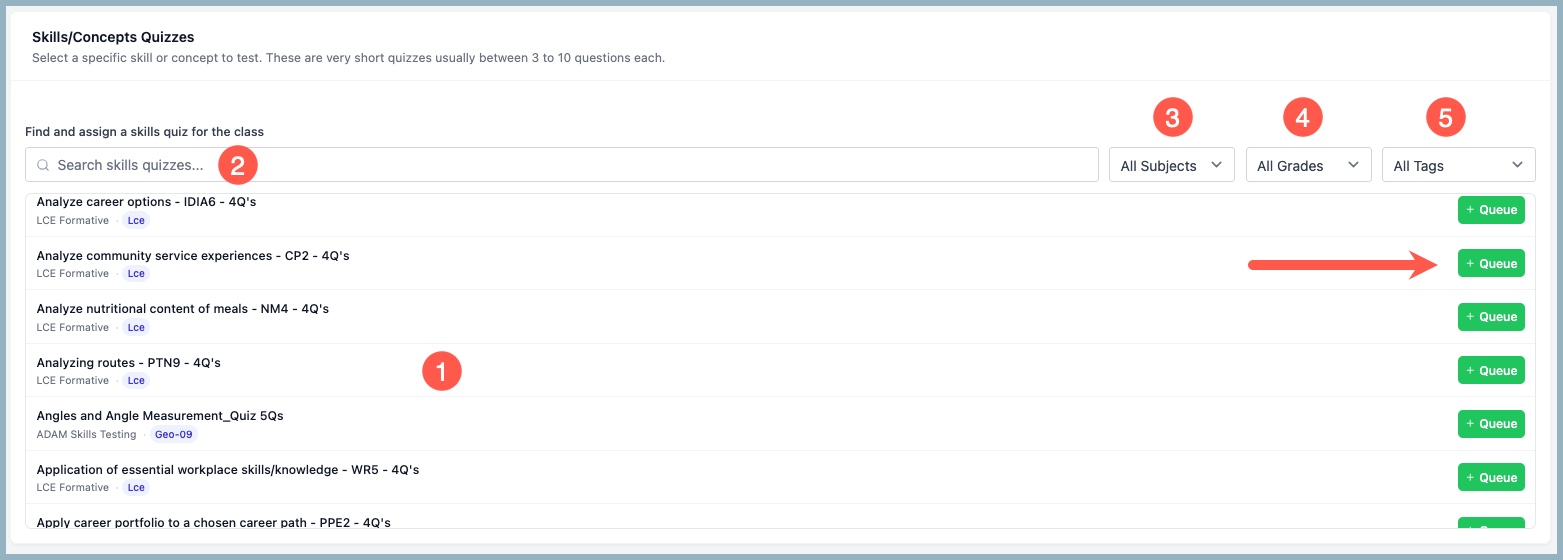
You can select a quiz a few different ways.
- Scroll through the alphabetically listed sub-tests
- Search by keyword
- Select Subjects
- Select Grade
- Search by Tags
Locate the row for the quiz you wish to assign and click on the green Queue button.
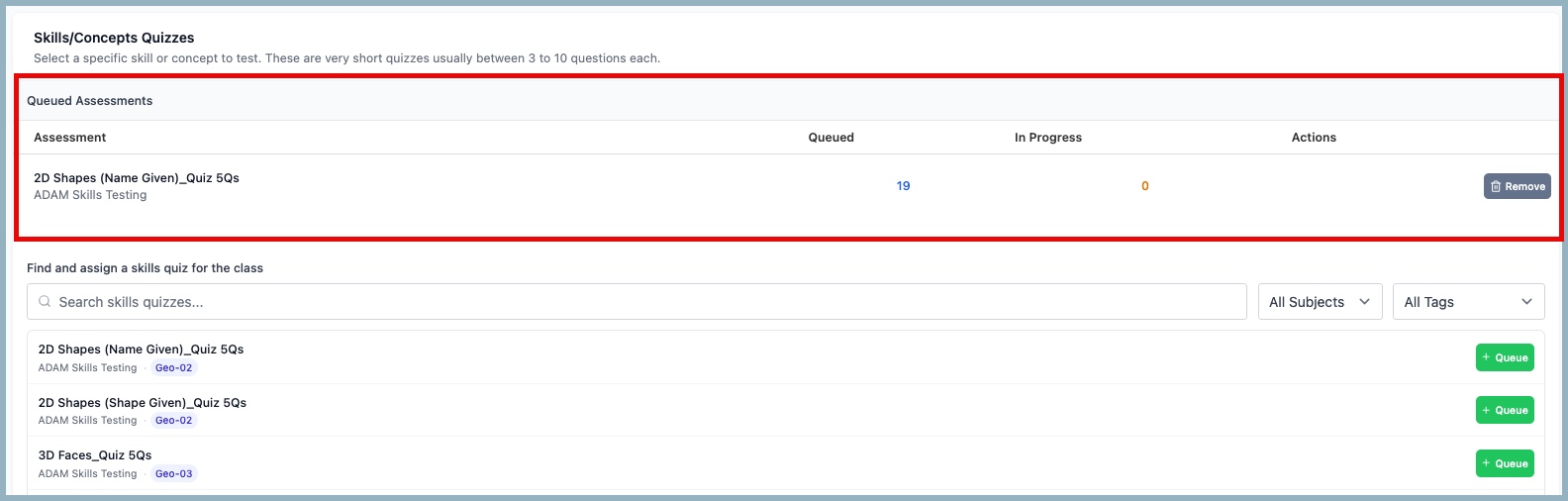
The queued quiz will appear under the Queued Assessments section showing the number of students queued for this test. If you wish to remove the quiz, simply click on “Remove” under the Actions column.
ASSIGNING SKILLS/CONCEPTS QUIZ TO AN INDIVIDUAL STUDENT
Click on the "Add/Edit" button next to the individual student to be assessed.
The Overview page will display a list of all assessments that have been assigned or are currently in progress to this student.
Assessments that are queued but not yet started will display a Remove button. Assessments that have already been started will display a Terminate button.
If you want to remove the queued assessment, simply click Remove.
To terminate an assessment that is already in progress, click Terminate. A warning message will appear notifying you that the test results will no longer be available after you select Yes, Terminate.
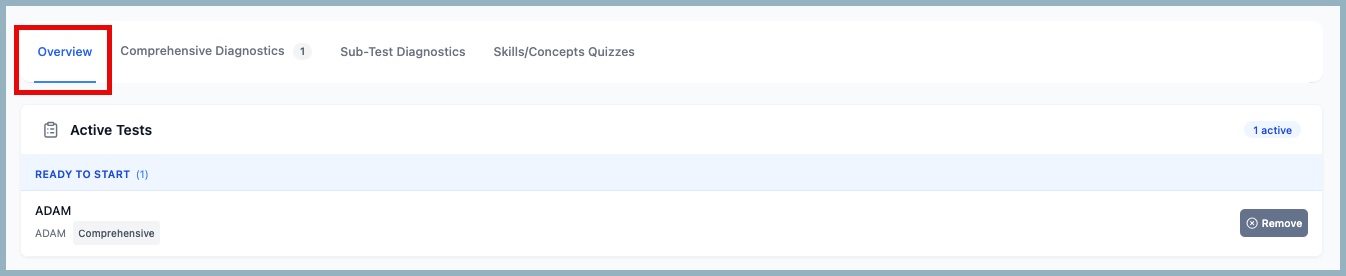
To queue up a Skills or Concepts Quiz, click on Skills/Concepts Quizzes.
You can select a quiz a few different ways.
- Scroll through the alphabetically listed sub-tests
- Search by keyword
- Select Subjects
- Select Grade
- Search by Tags
Locate the row for the quiz you wish to assign and click on the green Queue button.
The queued quiz will appear under the Queued Assessments section showing the assigned test. If you wish to remove the quiz, simply click on “Remove” under the Actions column.
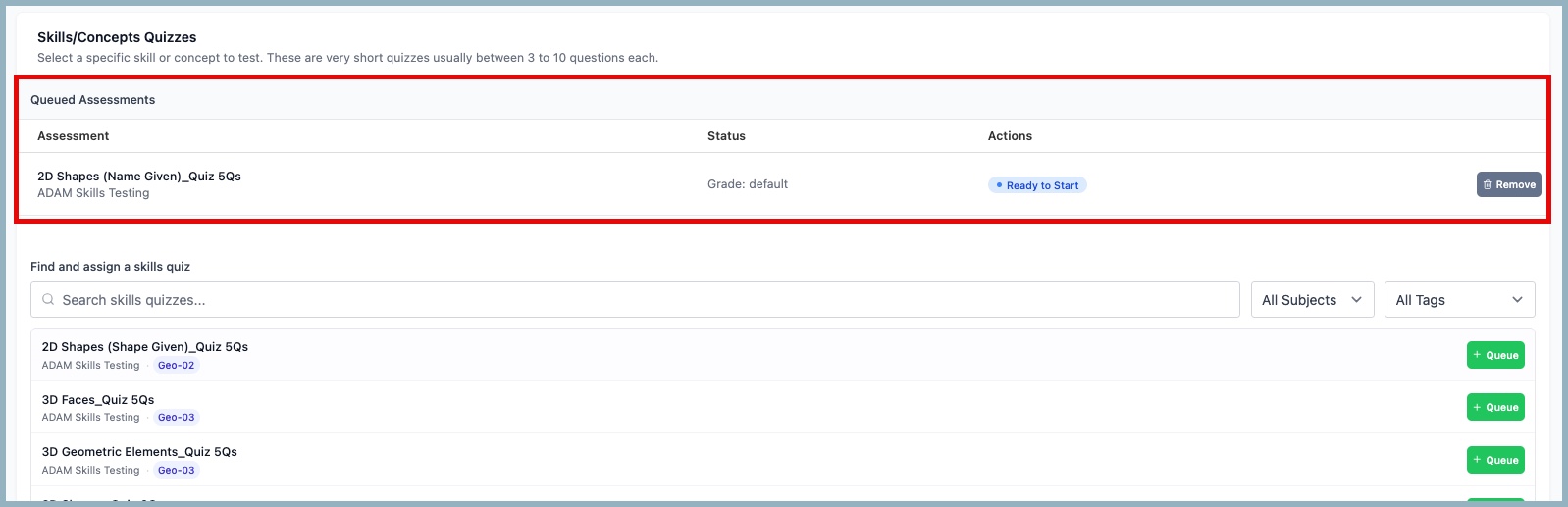
Once queued, you will be able to view all the queued and in progress quizzes assigned for that student. The student can log in using their unique student credentials, or the teacher can log them in from the teacher account.



 Multiple values found.


 Profile
 Sign up now
 Manage
  Sign out