There are multiple ways to do this. Reference the diagram below:
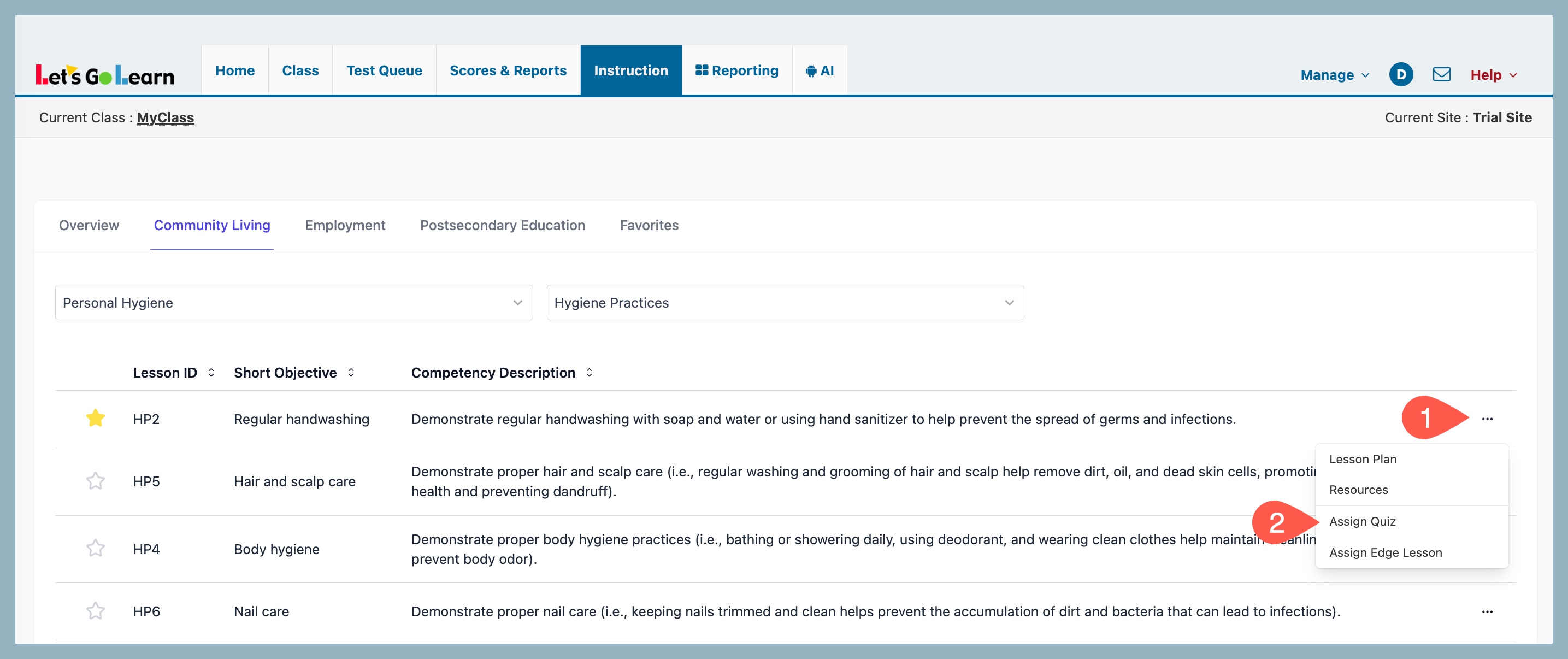
(1) Click on the 3 dots next to any individual lesson plan and choose "Assign Quiz." This will allow you to assign the quiz associated with this specific lesson to one or more students in your class.
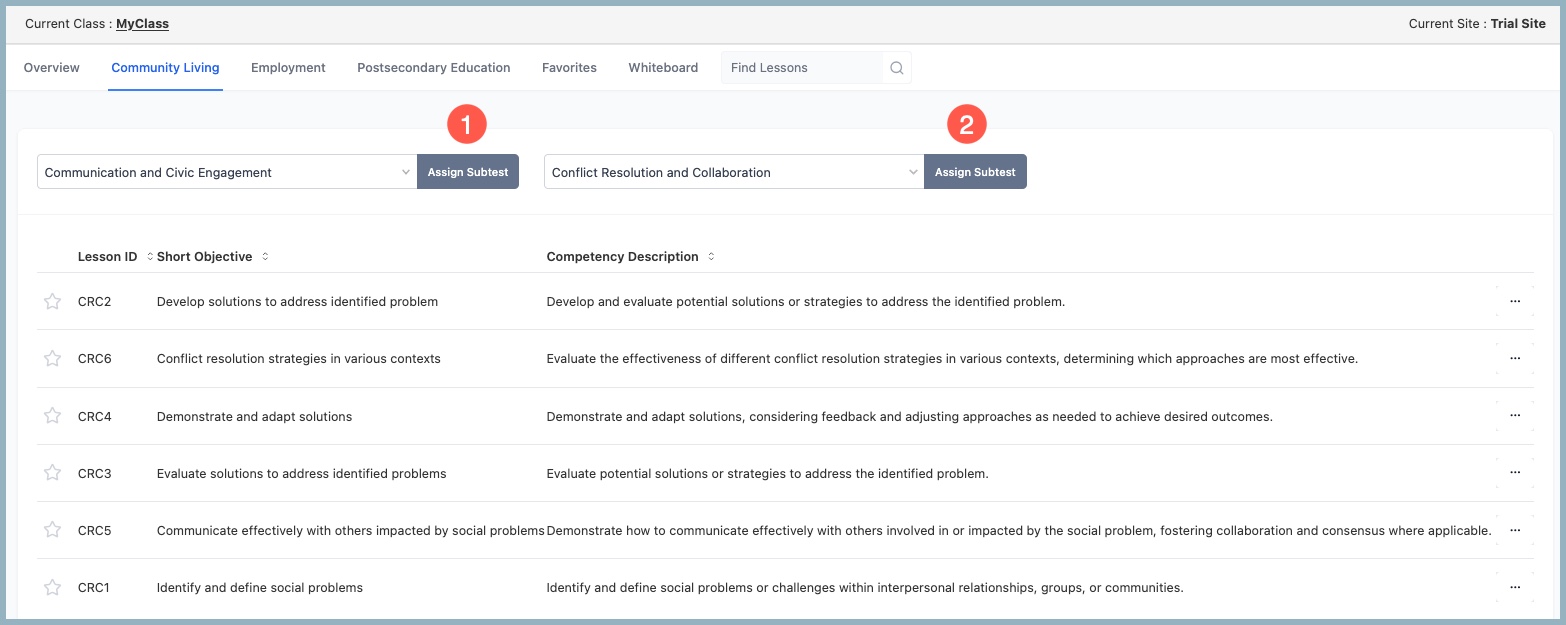
(2) and (3) If you click on the "Assign Subtest" button next to the Competency or Sub-Competency dropdown form fields, you can assign these to one or more students in your class. This is great for pre- and post-testing. You just have to decide at what level you wish to test your students. Obviously, sub-competencies rollup into competencies. To understand the exact mapping for LCE 2.0, click on the Overview tab where there is a google sheet or PDF file that you can view.
(4) If you wish to assign multiple quizzes and/or competency/sub-competency sub-tests to entire classes, you should explore the "Test Queue" page. This page allows you to quickly search for quiz, sub-test, for full diagnostic by name and to assign them quickly. You can also review what is already assigned to students and can remove or terminate tests from the students.
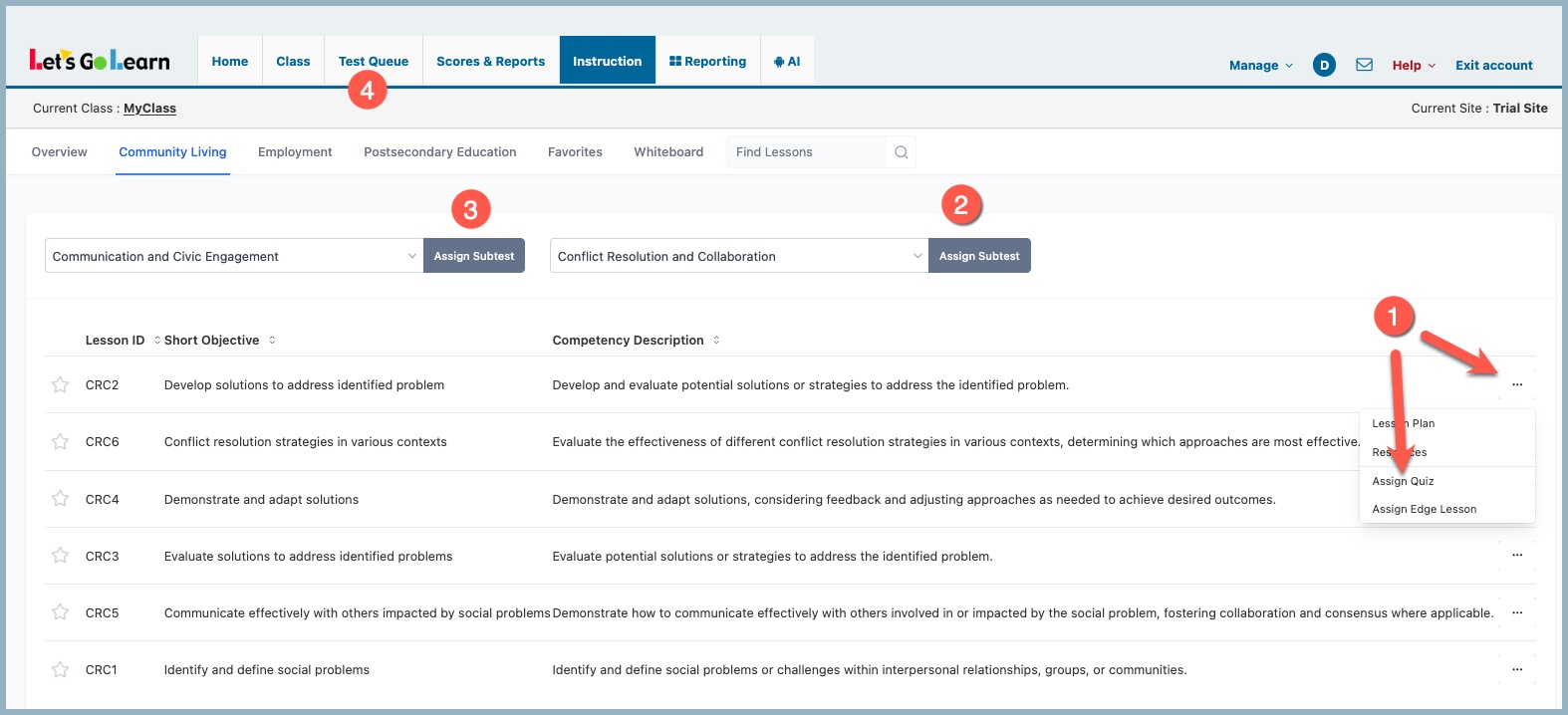
1 - Assign Quiz: View a lesson either on any sub-compentency page or on the faviorites tab, then click on the triple dots and select "Assign Quiz." Follow instructions...
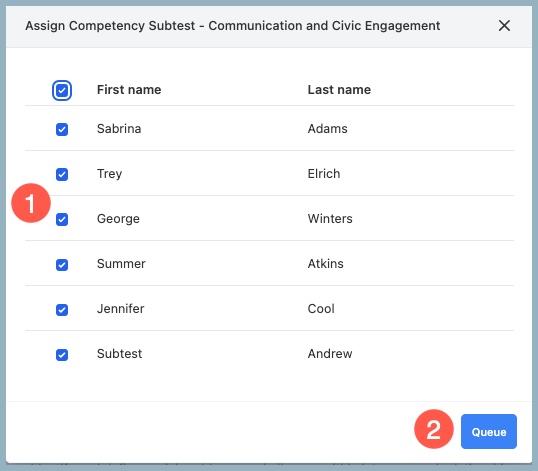
2 & 3 Assign Subtest - Select your Competency or Sub-Competency and click on Assign Subtest.
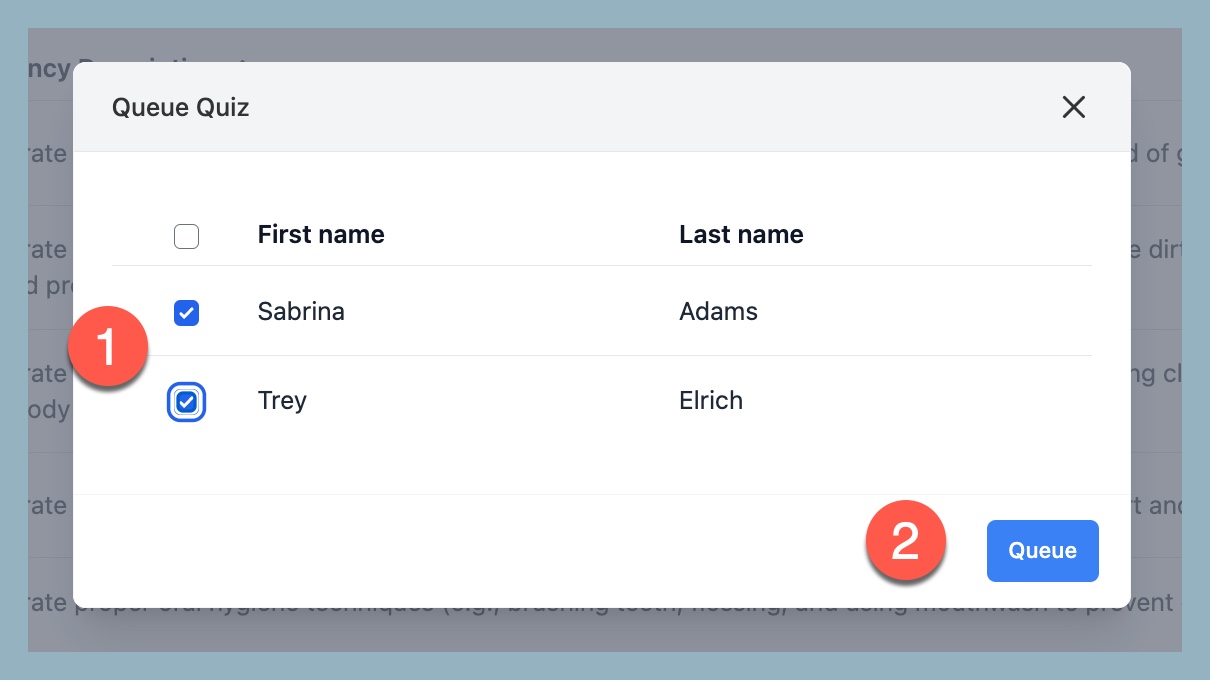
1 - Select All students or individual student
2 - Click on Queue
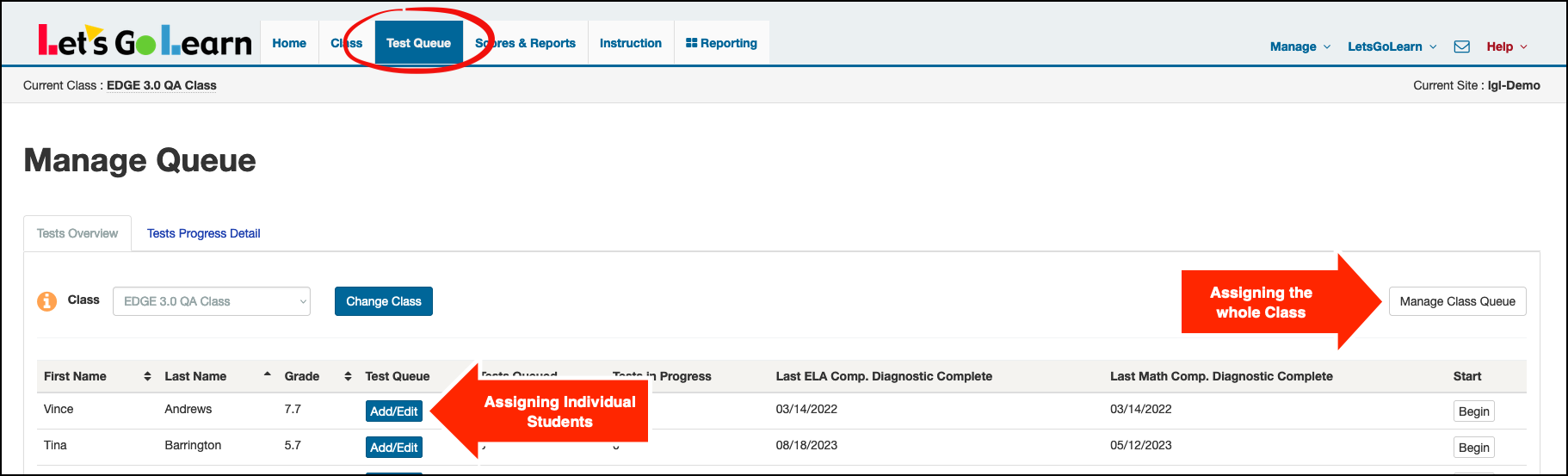
4 - Test Queue: Go to the Test Queue tab, then either select the student you want to assign a quiz to or click Manage Class Queue to assign it to the entire class.
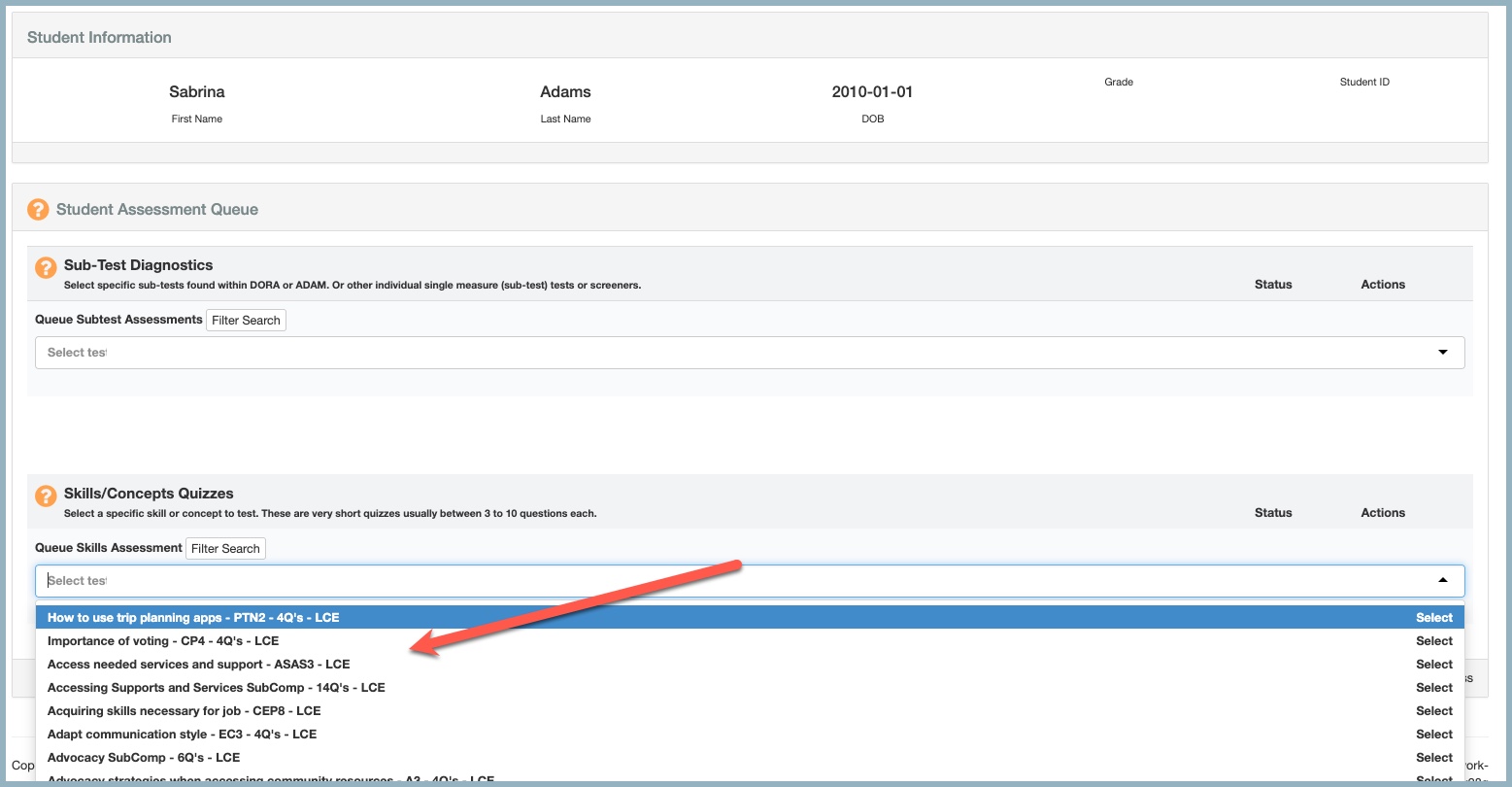
From here, click Select Test under either the Sub-Test Diagnostics or Skills/Concept Quizzes section, then choose the sub-test or quiz you want to assign to your student(s).
Additional Information
Here is the broader Knowledge Base article on the entire Test Queue system. It maybe helpful to review this if you need additional clarification.



 Multiple values found.

 Profile
 Sign up now
 Manage
  Sign out