What is LGL Transition Edge? - Video
LGL Transition Edge is composed of about 150 individual online student lessons. Users of LCE 2.0 have the option to add this to their accounts. Teachers can also play these online lessons for small groups or whole classes to take advantage of their interactivity and gaming practice. These lessons provide individual student support that overlap with about 70% of the LCE 2.0 teacher-led lesson plans.
How do my students access their Transition Edge Lessons once assigned? - CLICK HERE
There are two ways to assign Transition Edge Lessons.
Option 1 - LCE Lessons page
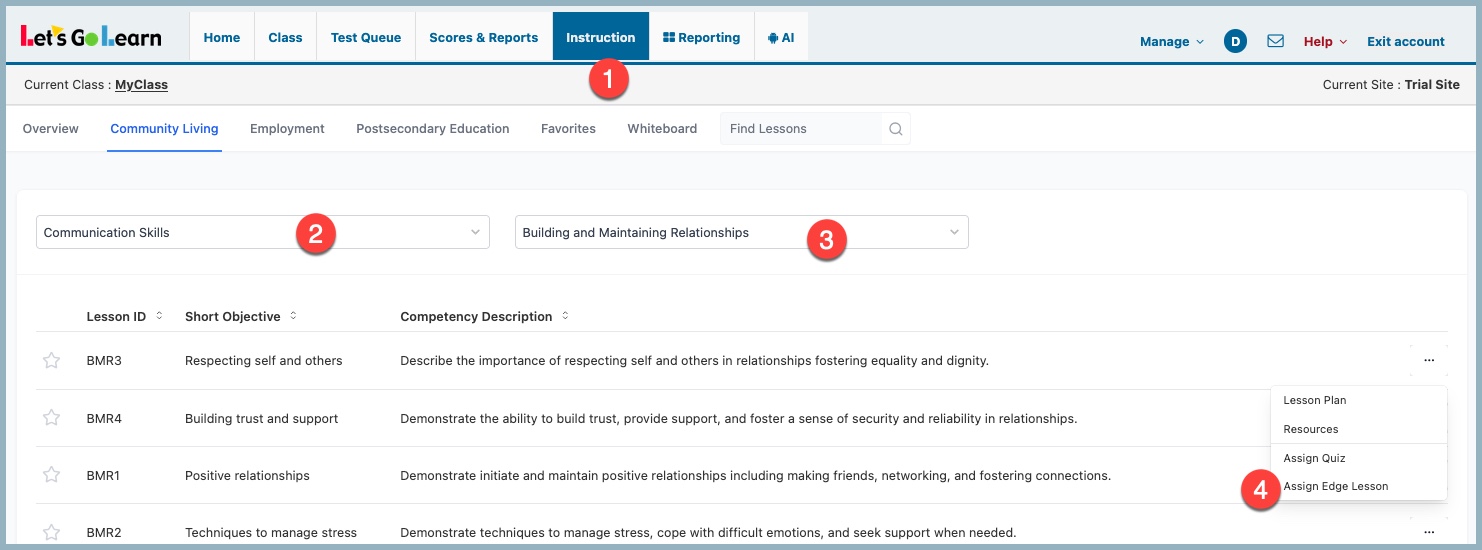
- Go to the LCE Lessons page: Instruction - LCE Lessons
- Select the Competency
- Select the Sub-Competency
- Click on the triple dots on the right for the Short Objective and select Assign Edge Lesson
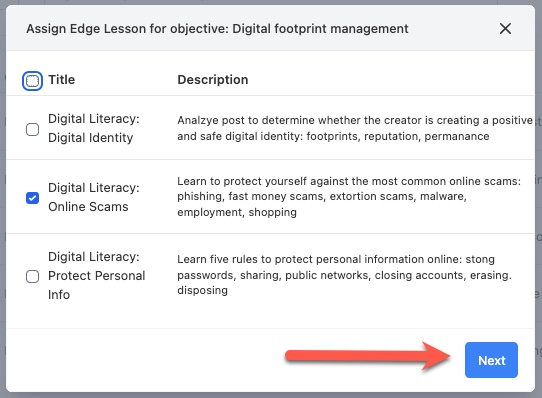
- Select Lesson or multiple lessons
- Click Next
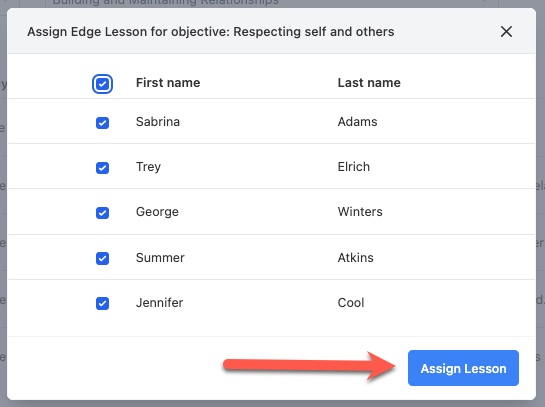
- Select student or multiple students
- Click Assign Lessons
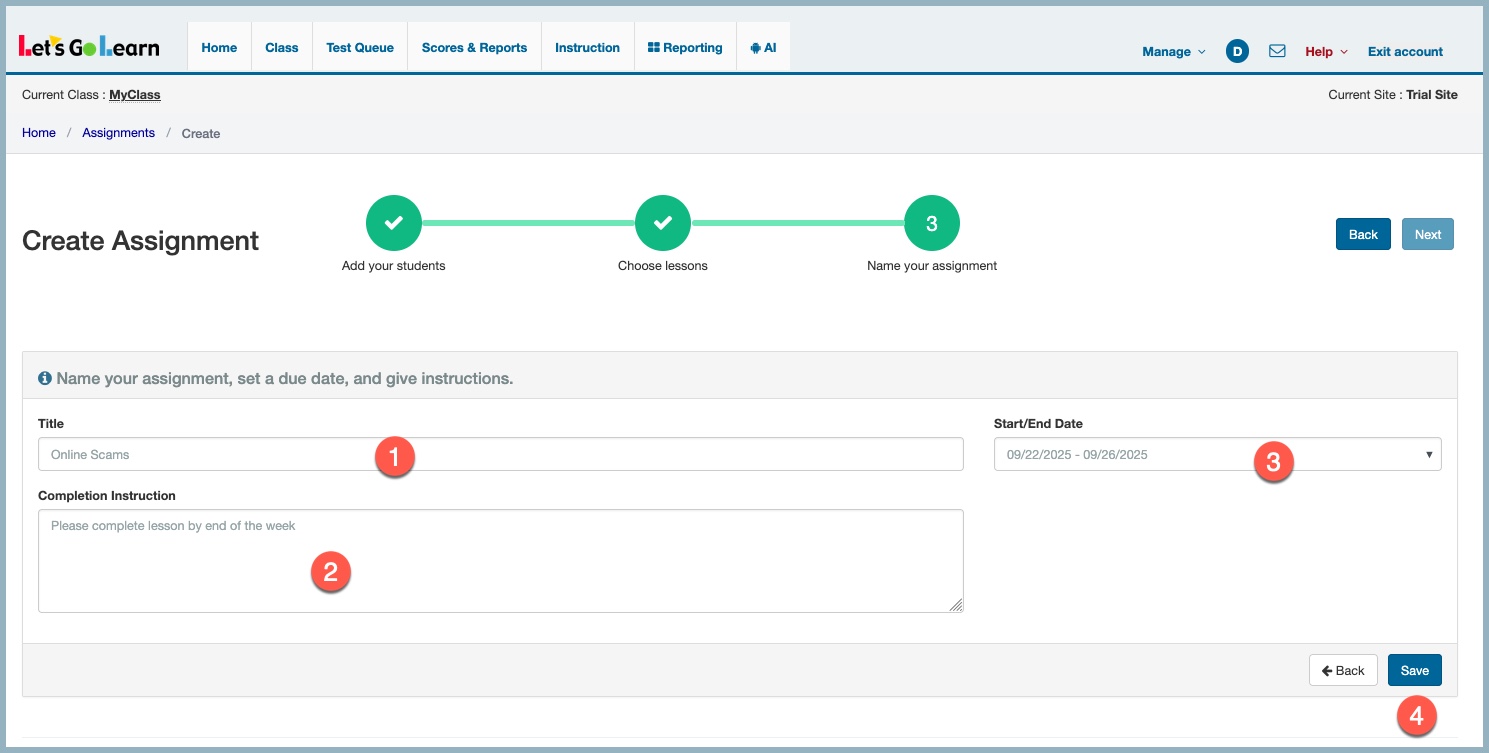
Create Assignment
- Create title of assignment
- Provide instructions for student
- Assign start and end date
- Click Save
Once completed, the system will direct you to the page shown below. You can also access this page anytime through the Instruction > Assignments tab.
The Actions link for each assignment allows you to edit, view usage, or delete the assignment.
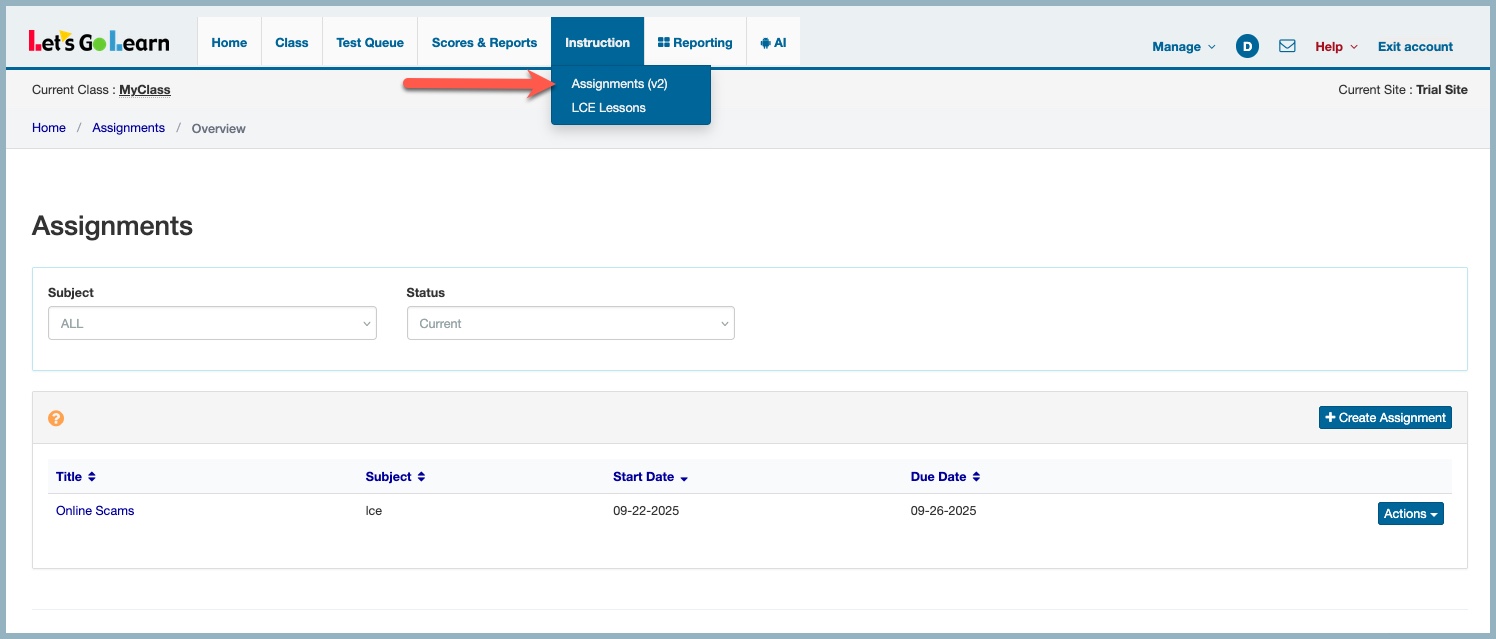
Option 2 - Assignments page
- Go to the Assignments page: Instruction - Assignments (v2)
- Click on Create Assignments
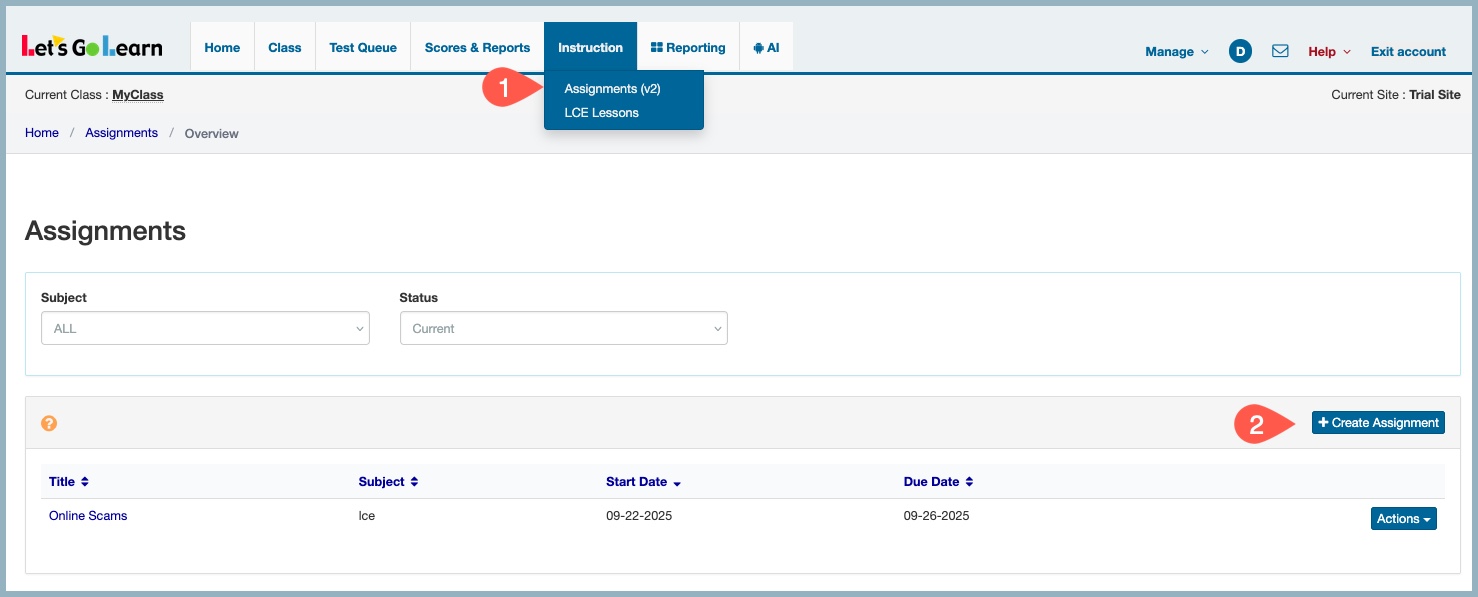
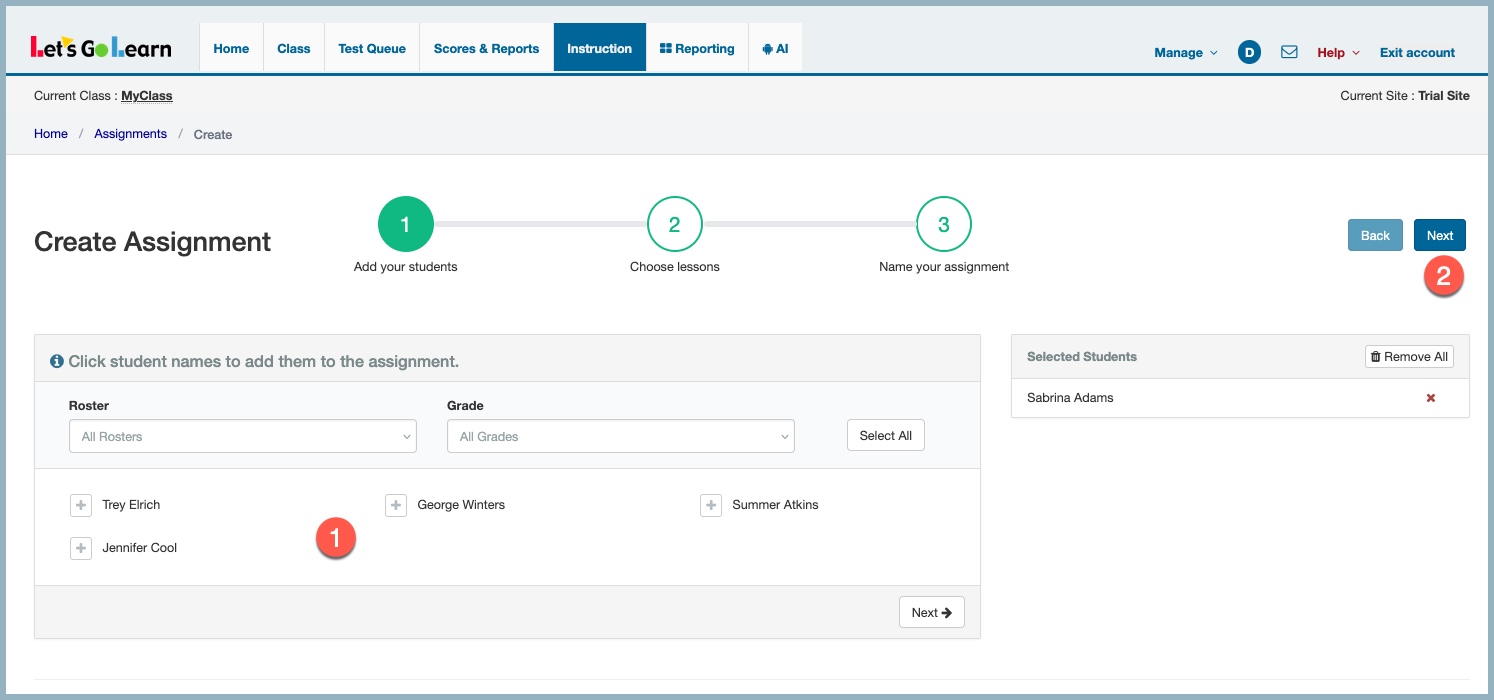
- Verify/Select Roster & Grade
- Select student or students
- Click Next
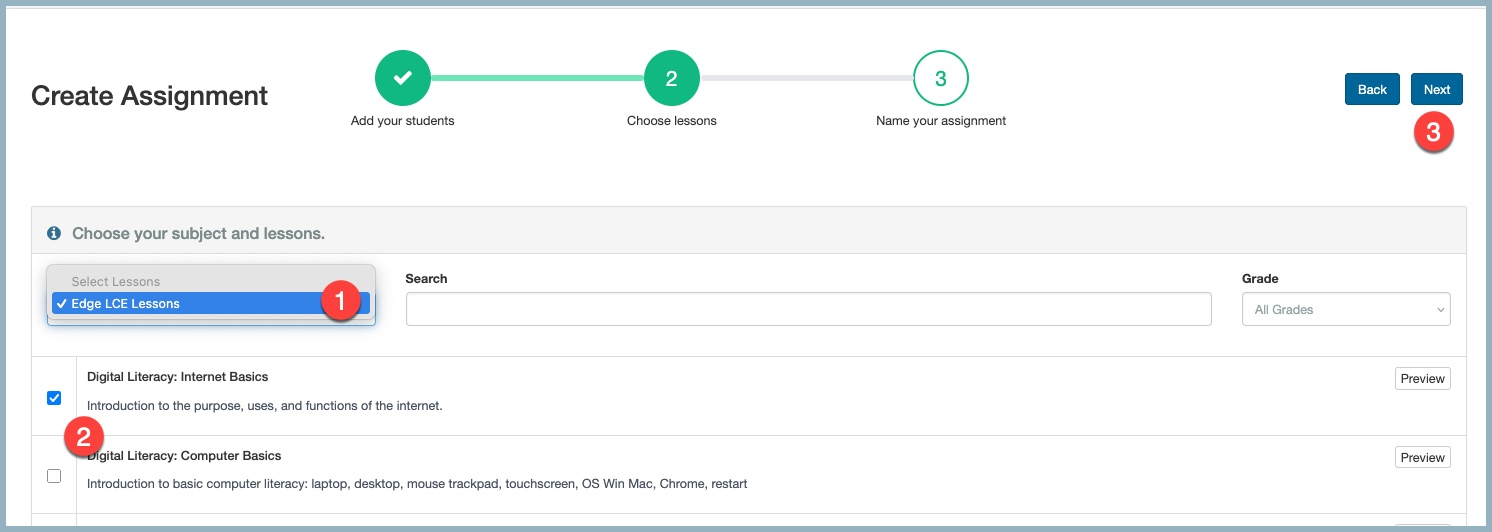
- In the Subject box, select Edge LCE Lessons
- Select the Lesson you wish to assign
- Click Next
Create Assignment
- Create title of assignment
- Provide instructions for student
- Assign start and end date
- Click Save
Once completed, the system will direct you to the page shown below. You can also access this page anytime through the Instruction > Assignments tab.
The Actions link for each assignment allows you to edit, view usage, or delete the assignment.
How do my students access their Transition Edge Lessons once assigned? - CLICK HERE



 Multiple values found.

 Profile
 Sign up now
 Manage
  Sign out