Let's Go Learn Knowledge Base
Question
How to view LCE 2.0 Transition Edge usage
 
Answer

To view the Transition Edge usage for your whole class, you can use the Instruction Usage page of your teacher account. 

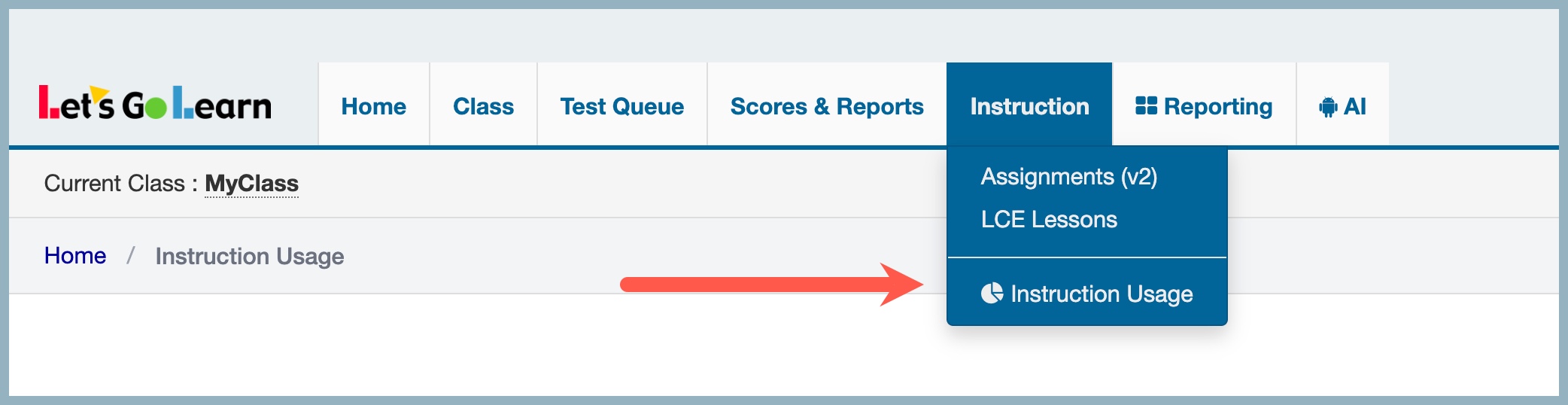
To get started, click on your Instruction tab and select Instruction Usage. 


FILTER OPTIONS

  1. Subject options: use All for LCE Transition Edge
  2. Limit: Use the custom date range options or your own organization's calendar range (full year, semester, ESY, summer school, etc.)
  3. Administered Through: use All for LCE Transition Edge

INSTRUCTION USAGE OVERVIEW

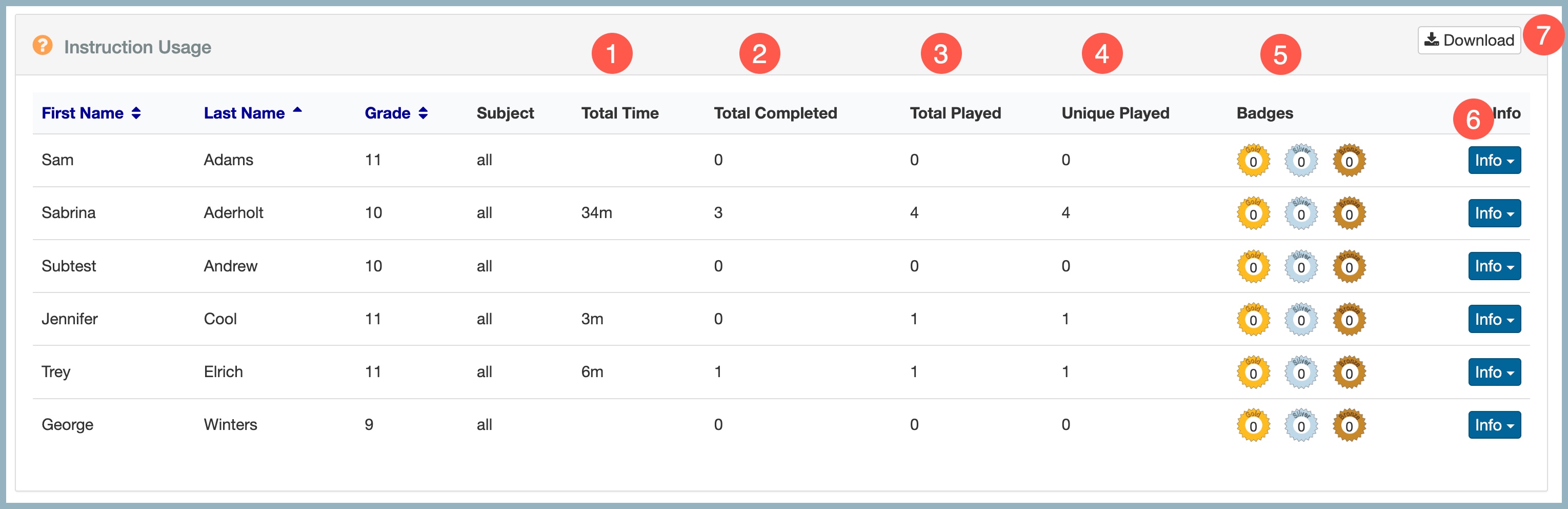
  1. Total Time - total time usage
  2. Total Completed - Total number of completed lessons (includes repeated and unique lessons)
  3. Total Played -  Total number of lessons played (includes lessons begun and not completed and completed lessons)
  4. Unqiue Played - Total number of unique lessons played (includes only brand new lessons that appear for the student; does not include repeated lessons)
  5. Badges column is only used for ELA & Math Edge courses so they do not apply for LCE Transition Lesson
  6. Info button - view individual student usage details
  7. Download - download the page in Excel format
INDIVIDUAL STUDENT INSTRUCTION USAGE

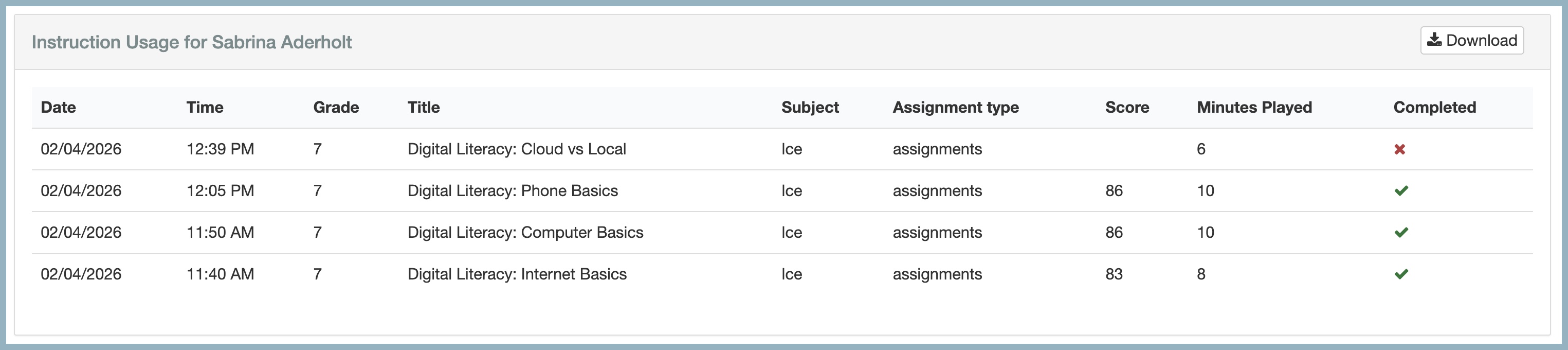
The Individual Usage Detail page displays the list of Transition Edge lessons for the selected date range and includes:

  • Completed and not completed lessons
  • Minutes played
  • Scores for completed lessons


Was this Article Helpful?
Please add a quick rating! It will help us improve articles for you!
Show fields from Show fields from Show fields from a related table
Report Name *
Description
Reports and Charts Panel
Each table has a panel listing its reports and charts, organized in groups.
Please wait while your new report is saved...
Field label
Column heading override
Justification
What does auto mean?
Fields in:

Fields to Extract:

Name for the new table:
Items in the new table are called:

When you bring additional fields into a conversion, Quickbase often finds inconsistencies. For example, say you're converting your Companies column into its own table. One company, Acme Corporation, has offices in New York, Dallas and Portland. So, when you add the City column to the conversion, Quickbase finds three different locations for Acme. A single value in the column you're converting can only match one value in any additional field. Quickbase needs you to clean up the extra cities before it can create your new table. To do so, you have one of two choices:

  • If you want to create three separate Acme records (Acme-New York, Acme-Dallas and Acme-Portland) click the Conform link at the top of the column.
  • If the dissimilar entries are mistakes (say Acme only has one office in New York and the other locations are data-entry errors) go back into your table and correct the inconsistenciesin this case, changing all locations to New York. Then try the conversion again.

Read more about converting a column into a table.