How to Run a Pre-Post Gains Report
From a Teacher account:
1. Log into your account.
2. Log into the Data Portal from the teacher account by clicking on the Scores & Reports tab and selecting DataPortal.

3. On the Data Portal page, select Performance/Growth and click on Pre/Post Gains Extract.

4. On the Pre/Post Gains Extract page, select your report criteria.
- Series - select the assessment series
- Rosters - select roster
- Start Date - select start date range
- End Date - select end date range
- Start Grade - select start grade range
- End Grade - select end grade range
- Export CSV - export your report to a CSV file
Once filters are applied, your report will appear in the box to the right. This is a large report so you may need to scroll to the right to view all the data.

From a Principal account:
1. Log into your account.
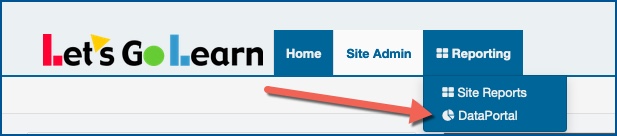
2. Click on your "Reporting" tab and choose "Data Portal"
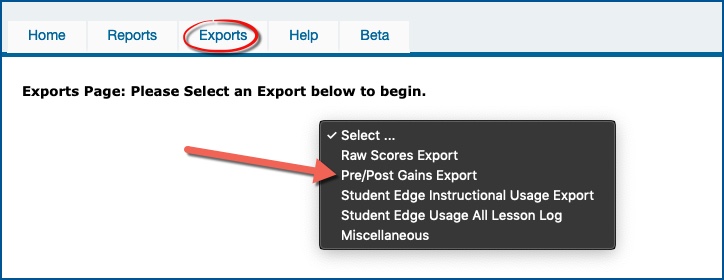
3. One inside the Data Porta, choose "Exports."
4. Select the "Pre-Post Gains Export" from the drop-down menu.
5. Select the assessment on which you want to run reports and enter the correct parameters in the boxes. Enter the earliest possible testing window you want to see on the report and the latest possible window. The report will pull the earliest assessment within the window and the latest, even if more than two assessments were completed in that time frame.
6. Once you click on “Export Data” on the bottom of the page, you will get a spreadsheet with the requested information.
See attachment below for detailed step-by-step directions.
Pre/Post Gain Export Legend Tip Sheets below under "Attachments"



 Multiple values found.


 Profile
 Sign up now
 Manage
  Sign out